How to back up Shopify products (and restore them)
Shopify doesn't back up your catalog, and deleted products can't be recovered. How to back up products, customers and collections yourself, and restore them.
Why you need your own backup
- Deleting a product in Shopify is permanent. Shopify suggests archiving products you might want again, because archived products can be unarchived.
- An import with Shopify's built-in CSV importer can't be cancelled once it starts and can't be undone.
- Bulk edits made by hand or by other apps change data in place, with no copy of what was there before.
Make a backup in one file
- In Bulkvane, open Export.
- Add Products, Customers and Collections, and leave all columns chosen. Excel is the format: each data type gets its own sheet in one file.
- Click Save as template and call it “Backup”, so next time it's two clicks.
- Export, then download the file and keep it somewhere safe: your computer, Google Drive or Dropbox.
If you've connected an AI assistant, you can ask it to “Run my Backup template” and get a download link.
Restore after a bad import: Undo
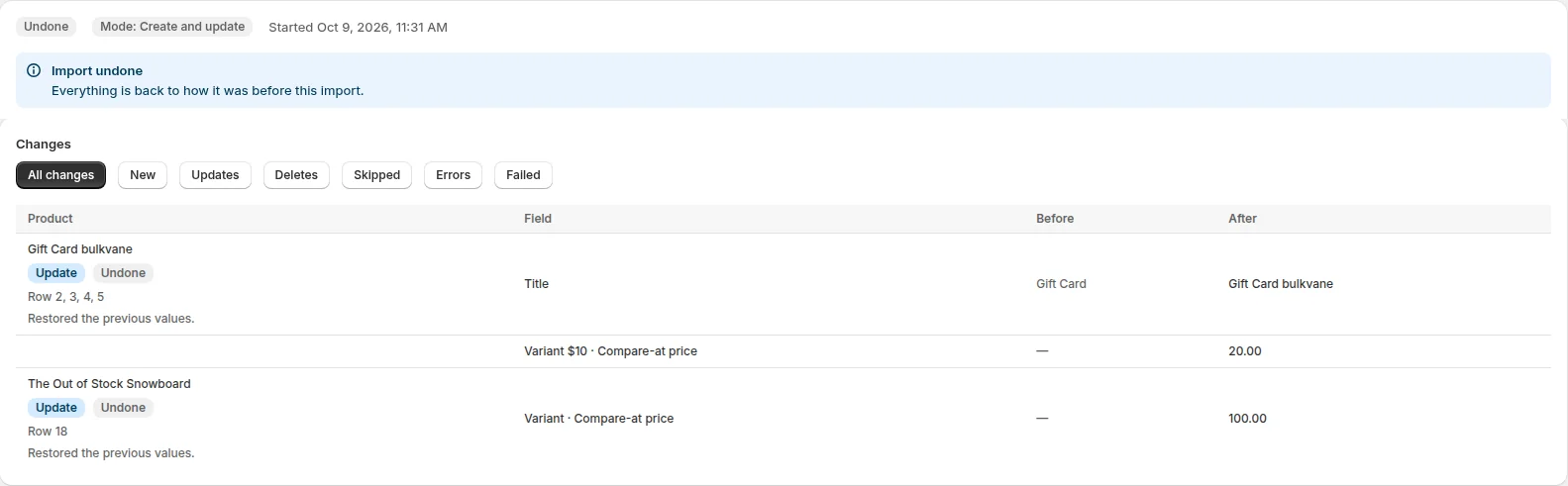
The fastest restore is the one you don't need a backup for. Before a Bulkvane import changes anything, it saves a snapshot of every product, customer and collection it will touch. For 30 days, Undo this import on the job page puts them back: updated items get their previous values, created items are deleted, and items the import deleted are re-created with new IDs.
See undo an import for exactly what Undo restores.
Restore from a backup file
- Open Import and add your backup file. Each sheet becomes its own import job.
- Choose Create and update.
- Click Check file and read the preview. Products whose values changed since the backup are listed with their old and new values.
- For a product that was deleted from Shopify, Bulkvane says “Product ID … wasn't found in your store — it may have been deleted. Clear the ID cell to create it as a new product.” Clear the ID and Variant ID cells for those rows and import again; they're created from their handle, with new IDs.
- Apply.
What a backup can't bring back
- Products deleted in Shopify keep their old IDs only in your backup file. Re-created products get new IDs, so links that used the old ID (in other apps, for example) won't follow.
- Undo only covers Bulkvane imports. Bulkvane can't undo changes made in Shopify admin or by another app. Restore those from your backup file.
- Orders aren't part of a Bulkvane backup.
Frequently asked questions
Does Shopify back up my products?
Not in a way you can restore from. Deleting a product is permanent, and an import with Shopify's CSV importer can't be undone, so keep your own export.
Can I recover a deleted Shopify product?
Not in Shopify. From a backup file, yes: clear the row's ID and Variant ID cells and import it, and the product is created again with new IDs. A product a Bulkvane import deleted comes back with Undo for 30 days.
How often should I back up my Shopify store?
Before every big change, and every week if your catalog changes often. A scheduled Bulkvane template makes the weekly file for you; download it from the job page, because job files are deleted after 30 days.
What doesn't a backup bring back?
Orders aren't part of a Bulkvane backup, and re-created products get new IDs, so links to the old IDs in other apps won't follow.
Related guides
How to bulk edit products in Shopify (2026 guide, 3 methods)
Bulk edit Shopify product data three ways (the admin bulk editor, a CSV import or an app), with steps for prices, tags, SEO, metafields, variants and stock.
· 14 min read
Import supplier CSV files into Shopify over FTP or SFTP
A practical guide to importing supplier CSV files via FTP, FTPS or SFTP into Shopify: SKUs, inventory locations, preview and safe updates.
· 2 min read
How to schedule Shopify product exports daily or weekly
Set up recurring Shopify CSV or Excel exports with saved templates, daily or weekly schedules, job history and completion notifications.
· 2 min read
How to bulk edit Shopify productsFree CSV templatesBrowse the help center
Preview every change.Undo any import for 30 days.
Install free