Import supplier CSV files into Shopify over FTP or SFTP
A practical guide to importing supplier CSV files via FTP, FTPS or SFTP into Shopify: SKUs, inventory locations, preview and safe updates.
FTP, FTPS and SFTP are not the same thing
Suppliers often put a daily price or stock file on a server rather than emailing it. FTP, FTPS and SFTP are ways to retrieve that file. SFTP uses SSH, while FTPS uses TLS. Plain FTP does not encrypt the connection, so ask your supplier for SFTP or FTPS when available.
A secure connection does not make the spreadsheet correct. Wrong SKUs, currencies or location names can still create expensive mistakes.
Five checks before the first import
- Get a sample CSV or Excel file and check its headings.
- Confirm how each variant is identified. Duplicate SKUs can match the wrong item.
- Find out whether the quantity means available stock, incoming stock or total warehouse stock.
- Check decimal separators, currency and whether blank cells should be ignored.
- Export a backup and test with a few products before using the full supplier file.
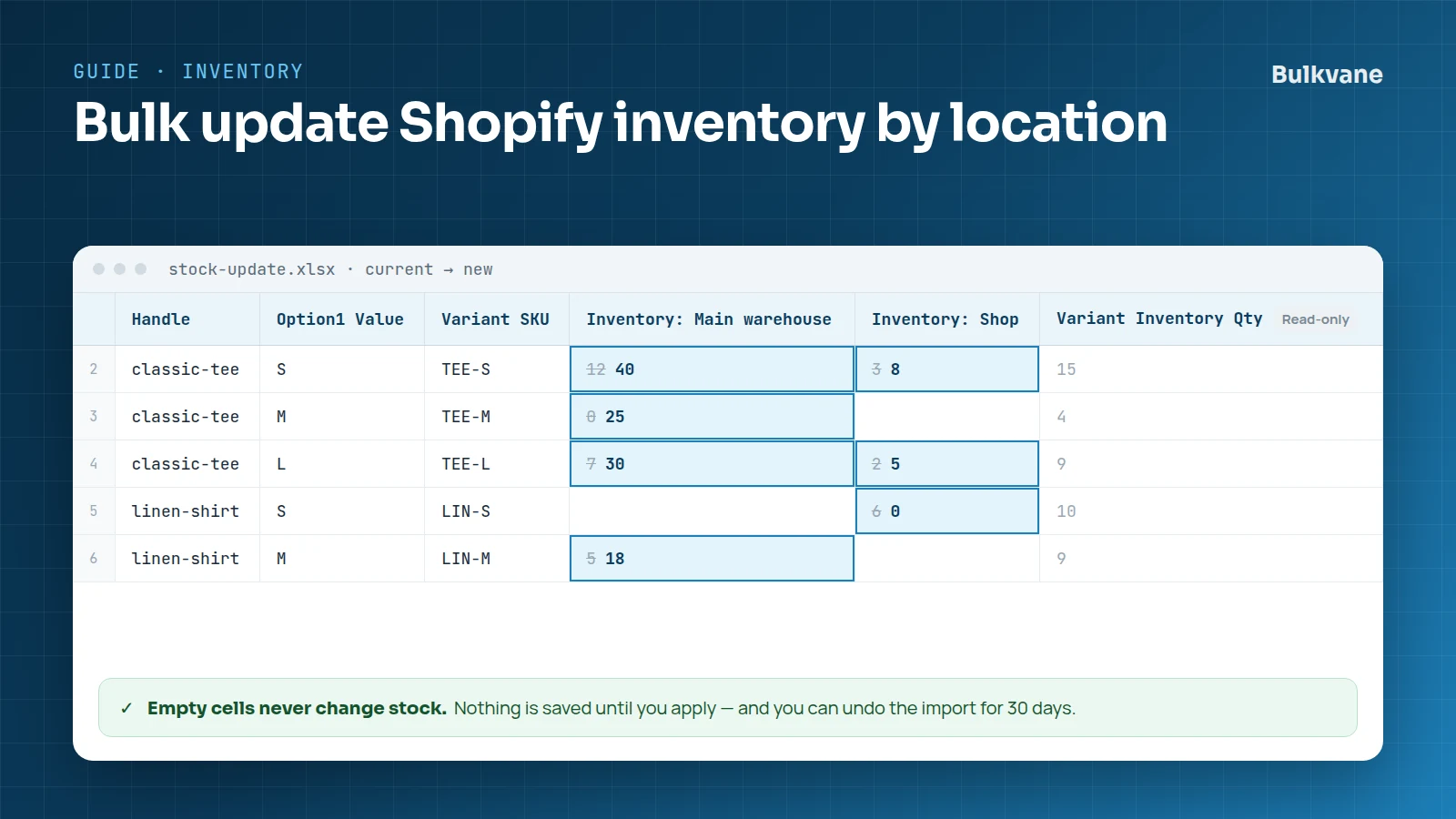
Stock is particularly easy to get wrong across locations. Read how to update Shopify inventory by location before importing a multi-location feed.
A safe FTP or SFTP import workflow
- Ask the supplier for the server connection details and exact file path. Use a supported FTP, FTPS or SFTP source on Growth or Pro.
- Check the file headings and map only the fields you intend to update.
- Use Update only when you want to change existing catalog records rather than create new products.
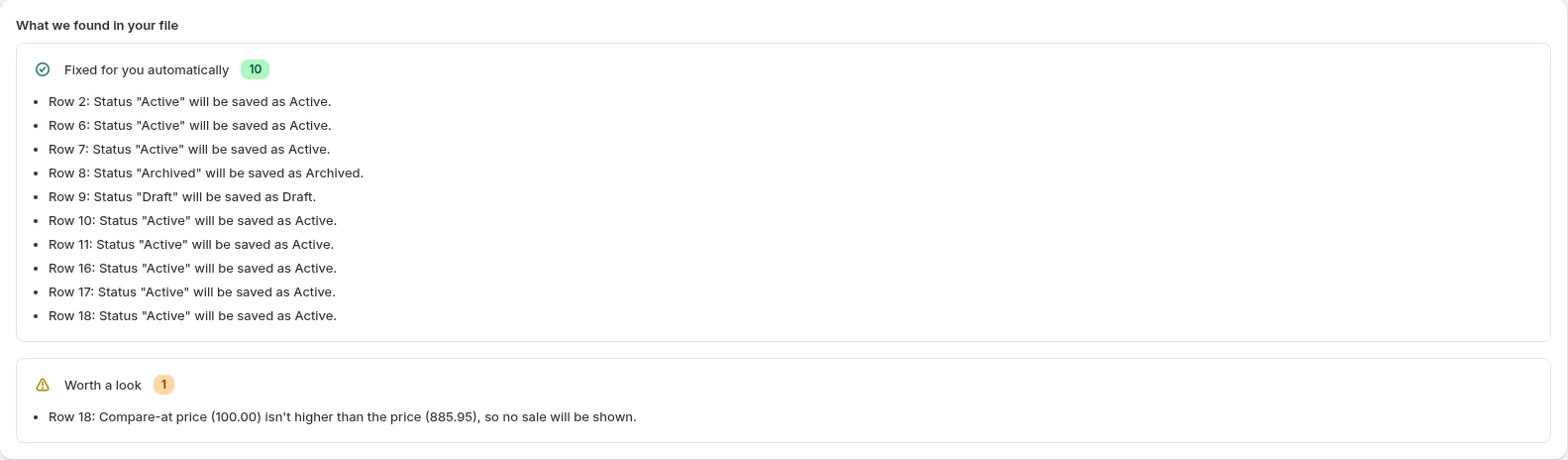
- Inspect the preview for missing SKUs, unexpected price changes and zero inventory.
- Apply a small test, verify the results in Shopify and then consider the full import.
The bulk import overview explains Bulkvane's preview and 30-day undo. See import modes for the difference between Update only and Replace.
What if the supplier updates the file every morning?
Bulkvane has daily and weekly scheduled jobs. Check the source options available in your plan before setting up a recurring feed, and keep review required until the supplier file has proved consistent. A schedule is not a substitute for checking job history or investigating a missing file.
See scheduled Shopify imports and exports for the current workflow and limits.
Frequently asked questions
Does Shopify import product CSV files from SFTP by itself?
Shopify's built-in CSV importer uses file uploads. An app or integration is needed to retrieve a supplier file from FTP, FTPS or SFTP.
Which Bulkvane plans support FTP, FTPS and SFTP?
Growth and Pro support these file sources. Other plans can use file uploads and supported links.
Can I undo a supplier import?
Bulkvane previews imports before applying and provides a 30-day undo window. Keep a separate backup as well.
Related guides
How to bulk update Shopify inventory by location
Update stock for every variant at every location from one spreadsheet, with a before/after preview, a check for stock that changed, and undo.
· 2 min read
Shopify CSV import not working? 11 causes and how to fix them
Why a Shopify CSV import fails or imported products don't show up (file size, IDs, handles, prices, images, status) and how to fix each one.
· 5 min read
How to schedule Shopify product exports daily or weekly
Set up recurring Shopify CSV or Excel exports with saved templates, daily or weekly schedules, job history and completion notifications.
· 2 min read
How to bulk edit Shopify productsFree CSV templatesBrowse the help center
Preview every change.Undo any import for 30 days.
Install free