How to run a Black Friday sale on Shopify that ends by itself
Set up a Shopify Black Friday and Cyber Monday sale in advance: pick products, schedule the price drop, show compare-at prices and restore prices automatically.
Black Friday and Cyber Monday 2026: the dates
| Day | Date | What to have ready |
|---|---|---|
| Sale set up and previewed | By Friday 20 November | Products tagged, sale saved, preview checked |
| Black Friday | Friday 27 November | Sale starts at 00:00 in your time zone |
| Small Business Saturday (US) | Saturday 28 November | — |
| Cyber Monday | Monday 30 November | Sale still running |
| Sale ends | Tuesday 1 December, 00:00 | Prices back to normal |
Two ways to discount in Shopify
Shopify gives you two kinds of sale, and they look different to shoppers:
| Discount (automatic or code) | Sale price (compare-at) | |
|---|---|---|
| What changes | Nothing on the product; the discount is applied in the cart and at checkout | The variant's price; the old price becomes the compare-at price |
| What shoppers see | The full price on product pages (unless your theme shows discounts), the saving in the cart | The sale price with the old price struck through, on product and collection pages |
| Start and end | Built in: active dates on the discount | Manual in Shopify, or scheduled with an app such as Bulkvane |
| Best for | Codes for a list, free shipping, buy X get Y | Store-wide or category sales people should see while browsing |
Many stores use both: a sale price on the Black Friday range, and a code for their email list. Shopify's help center explains [discounts](https://help.shopify.com/en/manual/discounts) and [compare-at prices](https://help.shopify.com/en/manual/products/details/product-pricing/sale-pricing) in detail. If you're new to compare-at prices, read Shopify compare-at price explained.
Schedule the sale with Bulkvane, step by step
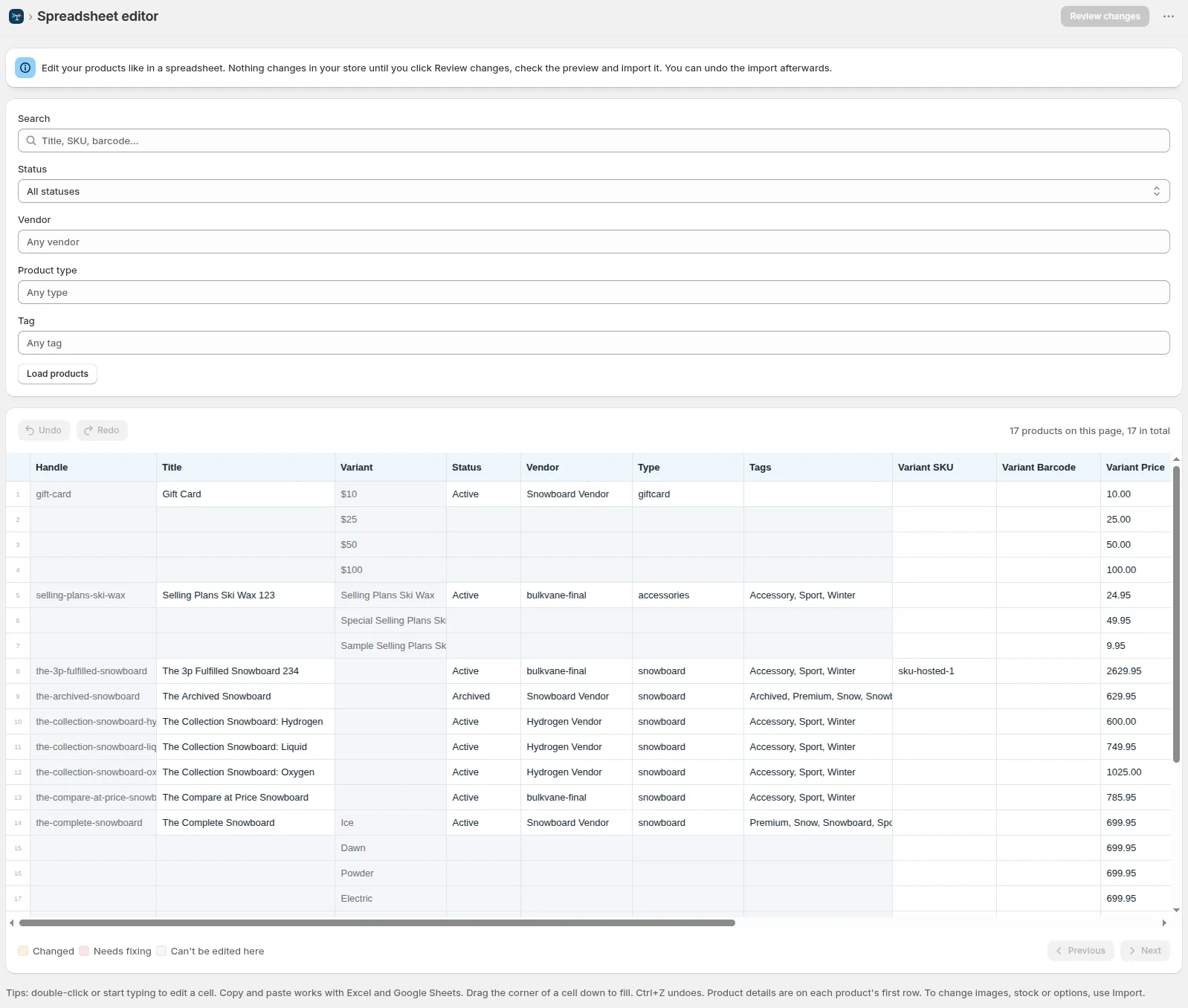
- Mark the products. Add a tag such as “bfcm” to the products in the sale with Shopify's bulk editor, a tags import or Bulkvane's spreadsheet editor. Or use a vendor or product type you already have.
- In Bulkvane, open Bulk Edit → Sales and click New sale. Name it “Black Friday”.
- Products: set Tag to bfcm (and Status to Active, so drafts aren't included).
- Discount: 25% off, rounded up to .99. Rounding happens after the discount, so 49.00 becomes 36.99, not 36.75.
- When: starts on 27 November at 00:00, ends on 1 December at 00:00. Check the time zone.
- Save sale. Bulkvane works out every new price as a preview. Nothing changes yet.
- Check the preview: old and new prices for every variant, and the risk check. Then schedule the sale.
That's it. At midnight on Friday the prices drop, with the old price as the compare-at price; the sale page shows Prices lowered, then On sale. At midnight on Tuesday, Bulkvane restores every price and compare-at price it changed, and the timeline ends at Prices restored.
What can go wrong, and what catches it
- A price that would become zero: the sale waits for your review instead of starting.
- A product that won't update: the first 10 products change first, and if 3 or more fail the sale pauses and emails you.
- A sale you need to stop: End now restores prices within a minute.
- Plans changing: you can edit or cancel the sale any time before it starts; nothing changes until then.
Black Friday checklist for Shopify stores
- Back up your catalog: export products to Excel the week before, so you have a copy of every price. See back up and restore products.
- Fix costs first if you price from margin: a price rule with Cost × margin only changes variants that have a cost.
- Check stock per location, so the sale doesn't sell what you don't have. See update inventory by location.
- Build a “Black Friday” smart collection with the condition Tag is equal to bfcm, so the sale has its own page.
- Create discount codes for your email list or partners, if you use them, in Shopify admin or in bulk from a discounts file.
- Don't raise prices in the weeks before the sale. In the EU, a price reduction has to be shown against the lowest price of the previous 30 days; check the rules where you sell.
- Test the storefront on Thursday: one product, a collection page and the cart.
Without an app
You can run the same sale with Shopify alone: export the products, set Variant Compare At Price to the current price and Variant Price to the sale price in a spreadsheet, and import the file on Friday. On Tuesday, import the original prices again. It works, but somebody has to be awake to do it, and a formula in the wrong column changes the wrong prices. If you do it this way, import with Bulkvane and you can at least undo the import to end the sale.
Frequently asked questions
When is Black Friday 2026?
Friday 27 November 2026, the day after US Thanksgiving. Cyber Monday is 30 November 2026.
Can I schedule a sale in Shopify without an app?
You can schedule a discount: automatic discounts and discount codes have start and end dates. Changing product prices and compare-at prices on a schedule needs an app or a Shopify Flow workflow; otherwise you change them yourself at the start and the end.
Should I use a discount code or a sale price for Black Friday?
A sale price with a compare-at price shows the saving on product and collection pages, which suits store-wide sales. A discount code suits offers for a list of people. Many stores use both.
How long can a Bulkvane sale run?
Up to 28 days, from a start date and hour to an end date and hour in your store's time zone.
What happens to prices after the sale?
Bulkvane undoes the price changes it made at the start: every price and compare-at price goes back to what it was before the sale.
Related guides
Shopify compare-at price: what it is and how to set it in bulk
Compare at price meaning on Shopify: the original price, shown struck through. Why a sale doesn't show, and how to set or clear compare-at prices in bulk.
· 3 min read
How to bulk edit prices in Shopify (and put them back)
Four ways to change many Shopify prices at once, how to schedule a sale with compare-at prices, and how to undo a price change that went wrong.
· 4 min read
How to bulk add, remove or change tags in Shopify
Bulk add, remove or rename Shopify product, customer and order tags: the built-in Add tags action, or a spreadsheet with a preview and 30-day undo.
· 4 min read
How to bulk edit Shopify productsFree CSV templatesBrowse the help center
Preview every change.Undo any import for 30 days.
Install free