How to bulk update Shopify inventory by location
Update stock for every variant at every location from one spreadsheet, with a before/after preview, a check for stock that changed, and undo.
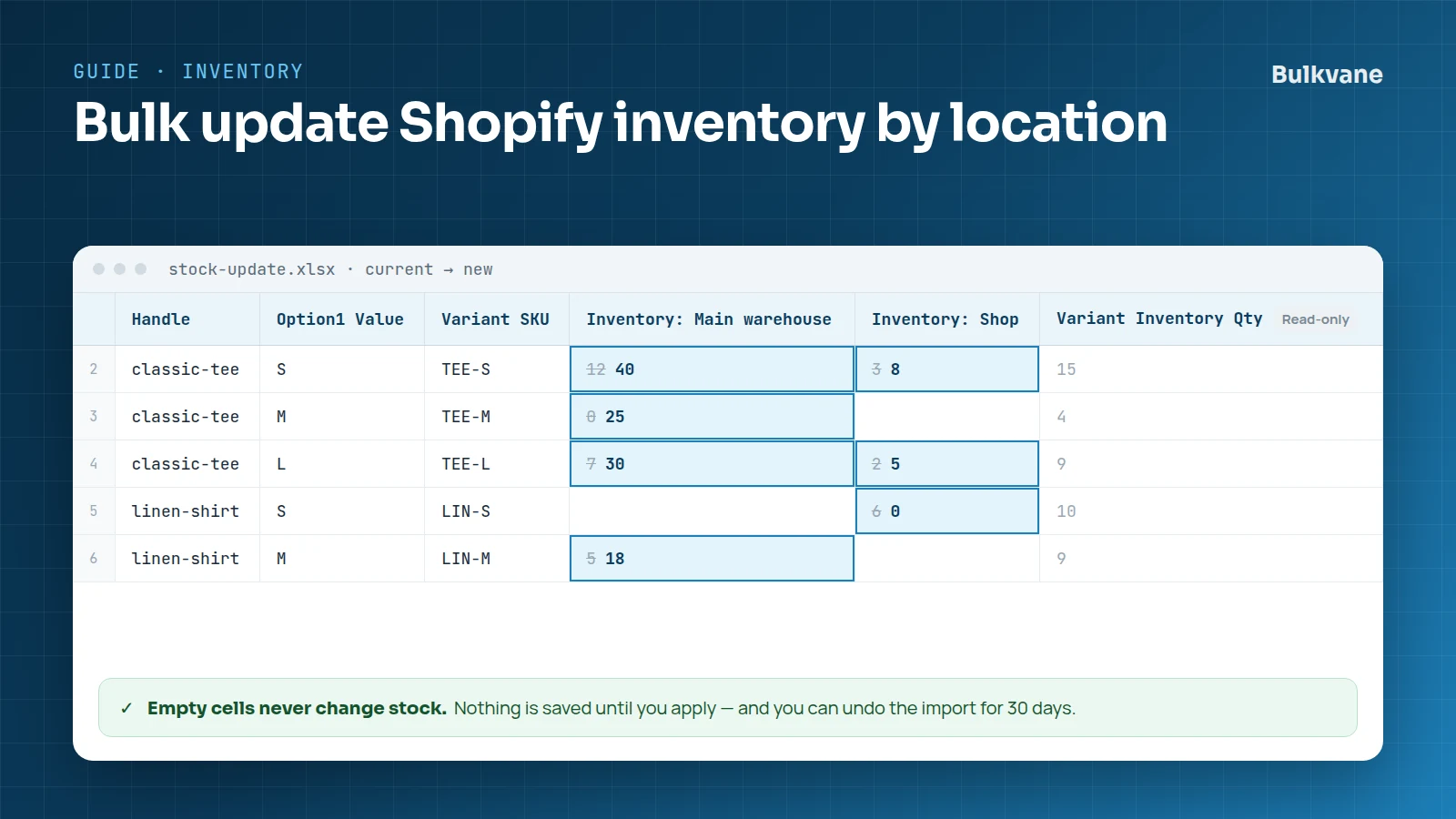
One column per location
In a Bulkvane file, stock is a column per location, named “Inventory: ” followed by the location's name, like “Inventory: Main warehouse” or “Inventory: Shop”. Each cell holds that variant's available quantity at that location, as a whole number.
- Location names are matched to your Shopify locations without caring about capitals.
- Empty cells never change stock, so you can update one location and leave the others blank.
- Variant Inventory Qty, the total across locations, is exported for reference and can't be imported.
Update stock in four steps
- Export your products with Bulkvane and choose the locations you want. Each one becomes a column.
- Type the new quantities, or paste them from your stocktake or supplier file. Keep the ID and Variant ID columns.
- Import the file with Update only.
- Check the preview (every variant's stock, old beside new, per location) and apply.
Stock that changes while you work
Stock keeps moving while you edit: orders come in, returns go back on the shelf. If a variant's stock changed between the preview and the import, Bulkvane skips that variant instead of overwriting the newer number.
And if a stock update goes wrong, undo the import for 30 days to put the previous quantities back.
Supplier stock files
If your supplier shares stock as a Google Sheet or a file link, import it from the link. When they update it, open the job and click Run again. You still see a preview before anything changes.
What about the spreadsheet editor?
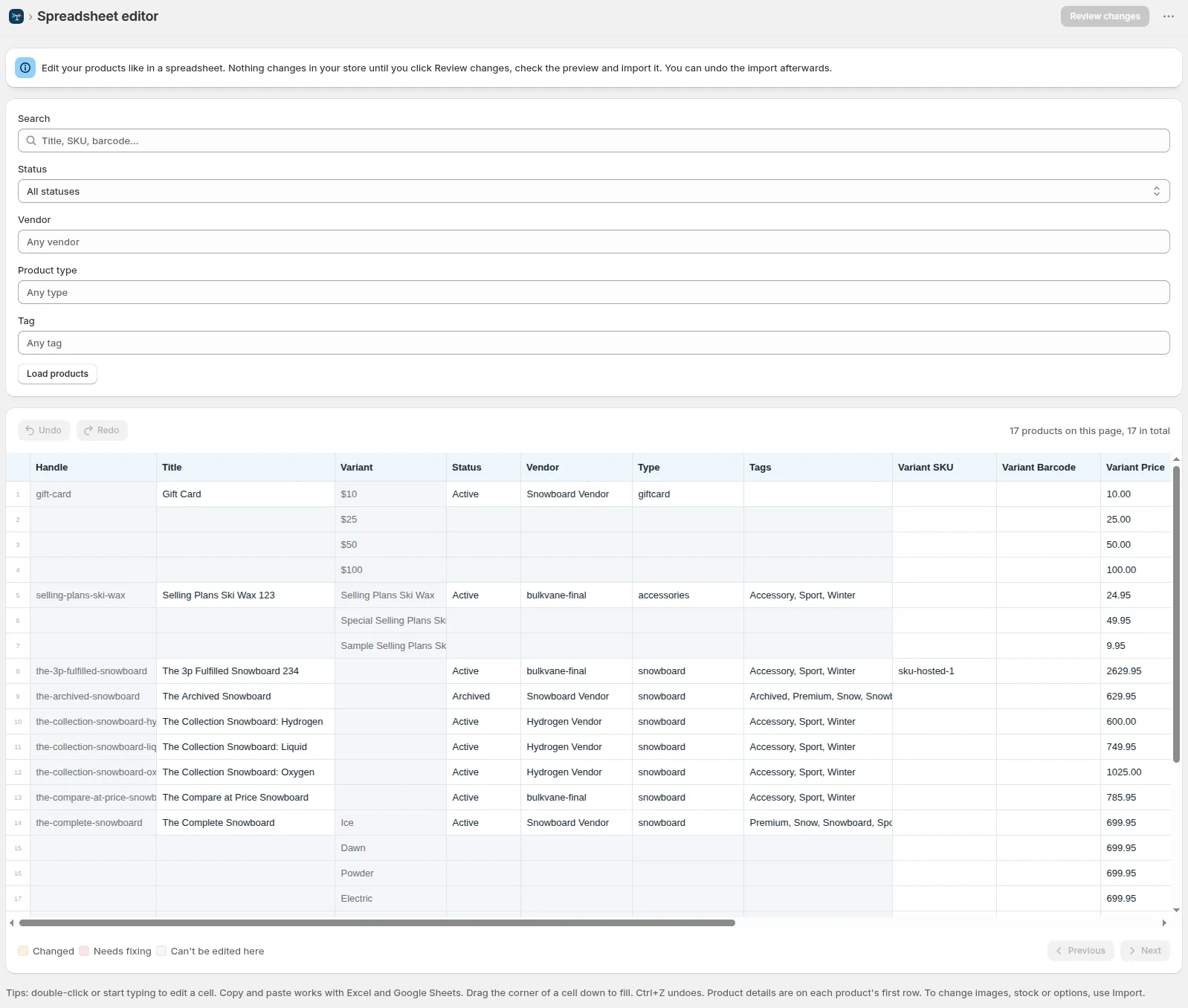
The spreadsheet editor changes product details, prices, SKUs and barcodes, but not stock. For stock, use an export and import as above. See metafields and inventory.
Frequently asked questions
Can I update stock with the Variant Inventory Qty column?
No. It's the total across all locations, exported for reference. Use one “Inventory: <location name>” column per location.
Do I have to fill in every location?
No. Empty cells never change stock, so you can update one location and leave the others blank.
What if an order comes in while I'm editing the file?
If a variant's stock changed between the preview and the import, Bulkvane skips that variant instead of overwriting the newer number.
Can I import my supplier's stock file?
Yes, from a Google Sheet or a file link. When the supplier updates it, open the job and click Run again; you still see a preview first.
Related guides
How to bulk edit products in Shopify (2026 guide, 3 methods)
Bulk edit Shopify product data three ways (the admin bulk editor, a CSV import or an app), with steps for prices, tags, SEO, metafields, variants and stock.
· 14 min read
Import supplier CSV files into Shopify over FTP or SFTP
A practical guide to importing supplier CSV files via FTP, FTPS or SFTP into Shopify: SKUs, inventory locations, preview and safe updates.
· 2 min read
How to schedule Shopify product exports daily or weekly
Set up recurring Shopify CSV or Excel exports with saved templates, daily or weekly schedules, job history and completion notifications.
· 2 min read
How to bulk edit Shopify productsFree CSV templatesBrowse the help center
Preview every change.Undo any import for 30 days.
Install free