How to copy products from one Shopify store to another
Copy products, customers, collections and store content from one Shopify store to another with an export and an import: what to change and what isn't copied.
When you'd copy a store
- Opening a second store for another country or a wholesale channel.
- Moving from a development store to the live store.
- Splitting a brand into its own store.
A controlled copy, not a live store sync
For your own stores, the practical route is to export the records from the original Shopify store and import them into the destination. This is not a live, two-way sync. You choose what moves, and review the destination preview before applying any changes.
Start with a few products. Store-specific IDs, inventory locations, sales channels and settings need attention even when the spreadsheet looks identical.
1. Export from the old store
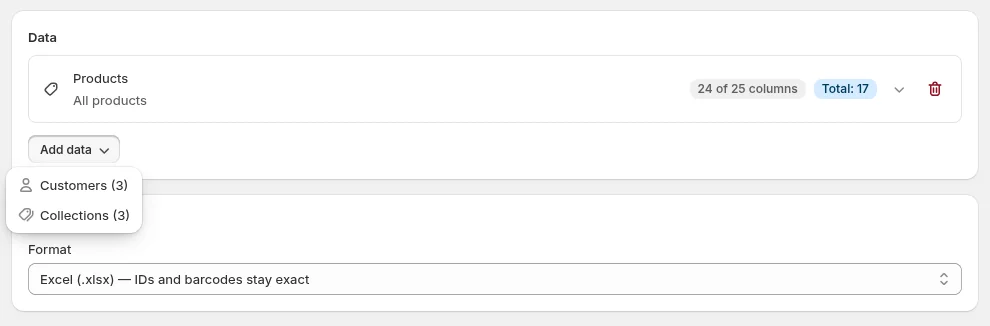
Install Bulkvane on the store you're copying from. On the Export page, add Products, Collections and Customers to one export, keep all columns and choose Excel: you get one file with a sheet per data type.
2. Prepare the file
- Clear the ID and Variant ID columns. Shopify IDs belong to the old store; without them, products are matched (and created) by Handle in the new one.
- Check the Inventory: <location> columns match the new store's location names (capitals don't matter), or remove them to set stock later.
- Images come across from their links. Images hosted on Shopify's CDN stay public, so the new store downloads them during the import.
3. Import into the new store
- Install Bulkvane on the new store and open Import.
- Add the file with Create and update. Each sheet becomes its own job, with its own preview. See several data types in one file.
- Import Collections after Products, so manual collections can find their products by handle.
- Read each preview, then apply. Anything wrong can be undone for 30 days.
What isn't copied
- Past orders. Order imports change the tags, notes and metafields of orders already in a store; they don't create orders.
- Customers' marketing consent. It's exported for reference, but consent has to come from the customer, so it's never imported.
- Sales channel publishing. After the import, check new products and collections are available on the new store's Online Store channel.
Store content copies the same way: export metafield definitions, metaobject definitions and metaobjects, pages, blog posts, menus, redirects and translations from the old store and import them into the new one. Import definitions before the products that use them.
For each item, the preview shows exactly what will be created, so you can spot anything missing before it's applied.
Frequently asked questions
Does this sync both Shopify stores automatically?
No. This guide describes exporting from one store and importing into the other. It is a controlled copy, not a continuous two-store sync.
Why clear the ID columns before importing into another store?
Shopify IDs belong to the old store. Without them, each row is matched by its Handle and created in the new store.
Do product images copy to the new store?
Yes. Images hosted on Shopify's CDN stay public, so the new store downloads them from their links during the import.
Can I copy orders to another Shopify store?
Not with Bulkvane. Order imports change the tags, notes and metafields of orders already in a store; they don't create orders.
In what order should I import?
Metafield and metaobject definitions first, then products, then collections, so manual collections can find their products by handle.
Related guides
How to bulk edit products in Shopify (2026 guide, 3 methods)
Bulk edit Shopify product data three ways (the admin bulk editor, a CSV import or an app), with steps for prices, tags, SEO, metafields, variants and stock.
· 14 min read
Import supplier CSV files into Shopify over FTP or SFTP
A practical guide to importing supplier CSV files via FTP, FTPS or SFTP into Shopify: SKUs, inventory locations, preview and safe updates.
· 2 min read
How to schedule Shopify product exports daily or weekly
Set up recurring Shopify CSV or Excel exports with saved templates, daily or weekly schedules, job history and completion notifications.
· 2 min read
How to bulk edit Shopify productsFree CSV templatesBrowse the help center
Preview every change.Undo any import for 30 days.
Install free