How to bulk edit prices in Shopify (and put them back)
Four ways to change many Shopify prices at once, how to schedule a sale with compare-at prices, and how to undo a price change that went wrong.
1. Shopify's bulk editor
In Shopify admin, select products on the Products page and choose Bulk edit. Add the price and compare-at price columns and type the new values. It's built in and fine for a few dozen products. Changes are saved when you click Save, so check them before you do.
2. Export, edit in a spreadsheet, import
For hundreds of prices, or price changes worked out with a formula, a spreadsheet is faster:
- Export your products with Bulkvane. Filter by vendor, type, tag or status to get just the ones you want, and choose the Variant Price and Variant Compare At Price columns.
- Edit the prices in Excel or Google Sheets. For a 10% increase, put =ROUND(X2*1.1, 2) in a spare column (where X2 is the first price cell), fill it down, then copy it and paste it back over the price column as values.
- Import the file with the Update only mode.
- Check the preview: every price, old beside new. Then apply.
3. Edit prices in a grid, without a file
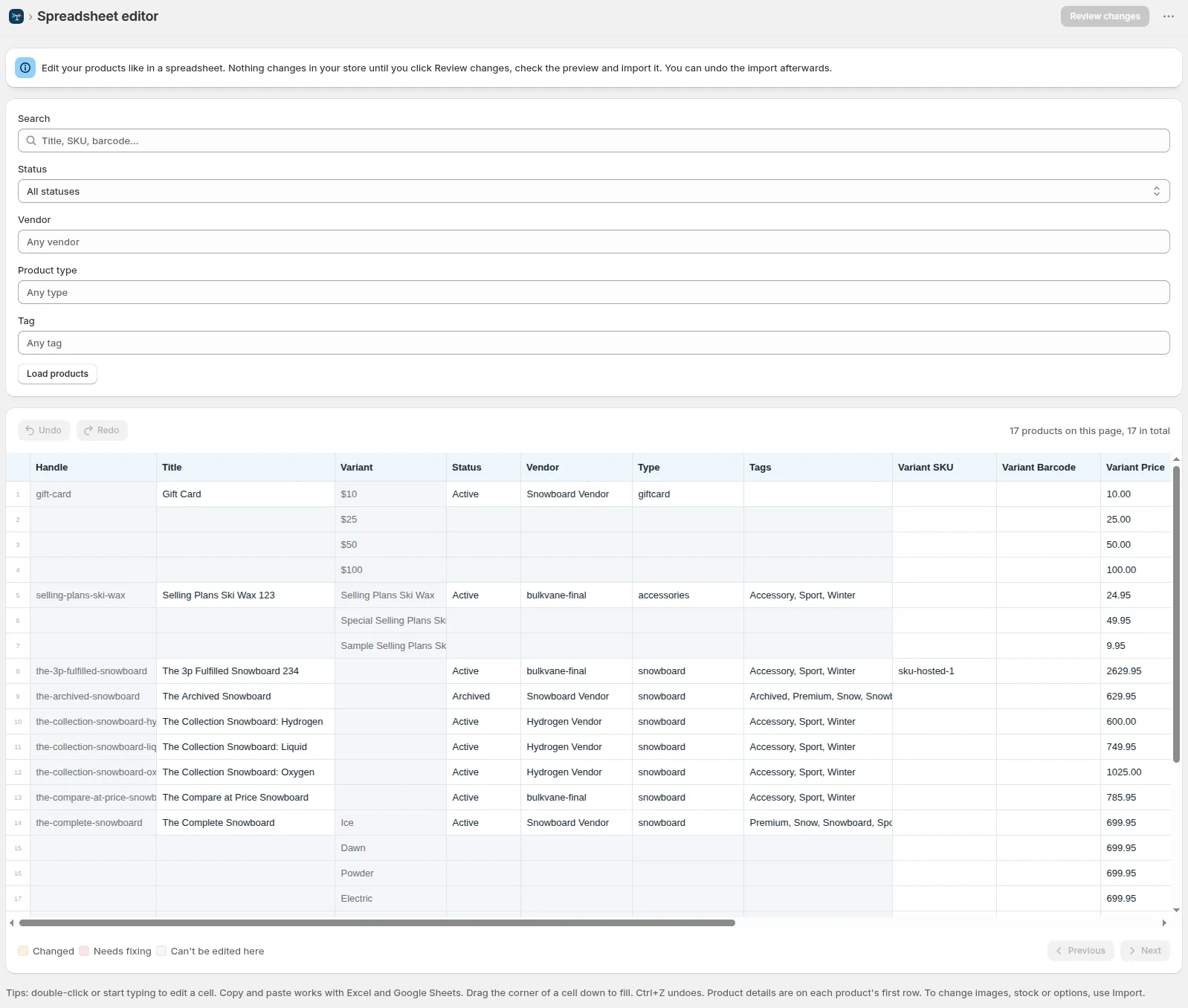
Bulkvane's spreadsheet editor shows your products and variants in a grid inside Shopify admin. Filter by vendor, type, tag or status, then type prices, paste a column from Excel, or drag a cell's corner down to fill the same price into the cells below. Review changes turns your edits into an import with the usual preview and 30-day undo.
4. A price rule: by percentage or cost × margin
For a price change you can say in one sentence, like “10% up on everything from Nordhem” or “2.5 × cost, ending in .99”, skip the spreadsheet. Bulkvane's price rules (Starter and up) pick products by status, vendor, type and tag, change prices by a percentage or set them to cost × margin, round up to .99 or .95 or to whole amounts, and keep, set or clear compare-at prices. The preview shows every old and new price before anything changes.
Running a sale with compare-at prices
- Shopify shows a sale when a variant's compare-at price is higher than its price. Put the original price in Variant Compare At Price and the sale price in Variant Price. See compare-at price explained.
- Bulkvane warns you when a compare-at price isn't higher than the price, because no sale would be shown.
- To end a sale you imported, undo the import that started it (the old prices and compare-at prices come back), or import the original prices again.
To have it start and end by itself, create a sale campaign: products, a % off, and a start and end hour in your store's time zone, up to 28 days. At the start the prices drop with the old price struck through; at the end every price goes back. See how to run a Black Friday sale.
Prices from other countries' spreadsheets
A supplier file may say “19,50 €” instead of 19.50. Bulkvane reads decimal commas, thousands separators and currency symbols, converts them, and tells you what it will save, so a European price list doesn't turn 19,50 into 1950.
Putting prices back
Before an import changes a price, Bulkvane saves what was there, and its risk check flags prices set to zero, cut by half or more, or multiplied by five or more (a misplaced decimal point) before you apply. If a price change still goes wrong, open the import in Job history and click Undo this import, or pick just the products to put back. See undo an import.
One job can change as many products as your plan allows: 10 on Free, 5,000 on Starter, 50,000 on Growth and 100,000 on Pro. See pricing.
Frequently asked questions
How do I raise all Shopify prices by a percentage?
Export the prices, multiply them in a spare column with =ROUND(price*1.1, 2) for 10%, paste the results back over the price column as values and import the file. On Starter and up, a Bulkvane price rule does the percentage and the rounding for you.
How do I put products on sale in Shopify?
Put the original price in the compare-at price and the sale price in the price. Shopify shows a sale when the compare-at price is higher than the price.
Can I schedule a price change in Shopify?
Shopify's bulk editor can't. A Bulkvane sale campaign drops prices at a start hour and puts every price back at the end, for up to 28 days.
How do I undo a bulk price change?
In Bulkvane, open the import in Job history and click Undo this import, up to 30 days later. Shopify's bulk editor and CSV import have no undo.
Related guides
How to bulk edit products in Shopify (2026 guide, 3 methods)
Bulk edit Shopify product data three ways (the admin bulk editor, a CSV import or an app), with steps for prices, tags, SEO, metafields, variants and stock.
· 14 min read
Import supplier CSV files into Shopify over FTP or SFTP
A practical guide to importing supplier CSV files via FTP, FTPS or SFTP into Shopify: SKUs, inventory locations, preview and safe updates.
· 2 min read
How to schedule Shopify product exports daily or weekly
Set up recurring Shopify CSV or Excel exports with saved templates, daily or weekly schedules, job history and completion notifications.
· 2 min read
How to bulk edit Shopify productsFree CSV templatesBrowse the help center
Preview every change.Undo any import for 30 days.
Install free