How to bulk edit Shopify metafields with a spreadsheet
Bulk edit Shopify product and variant metafields with a spreadsheet: column names, the value format for every type, definitions, metaobjects and fixes.
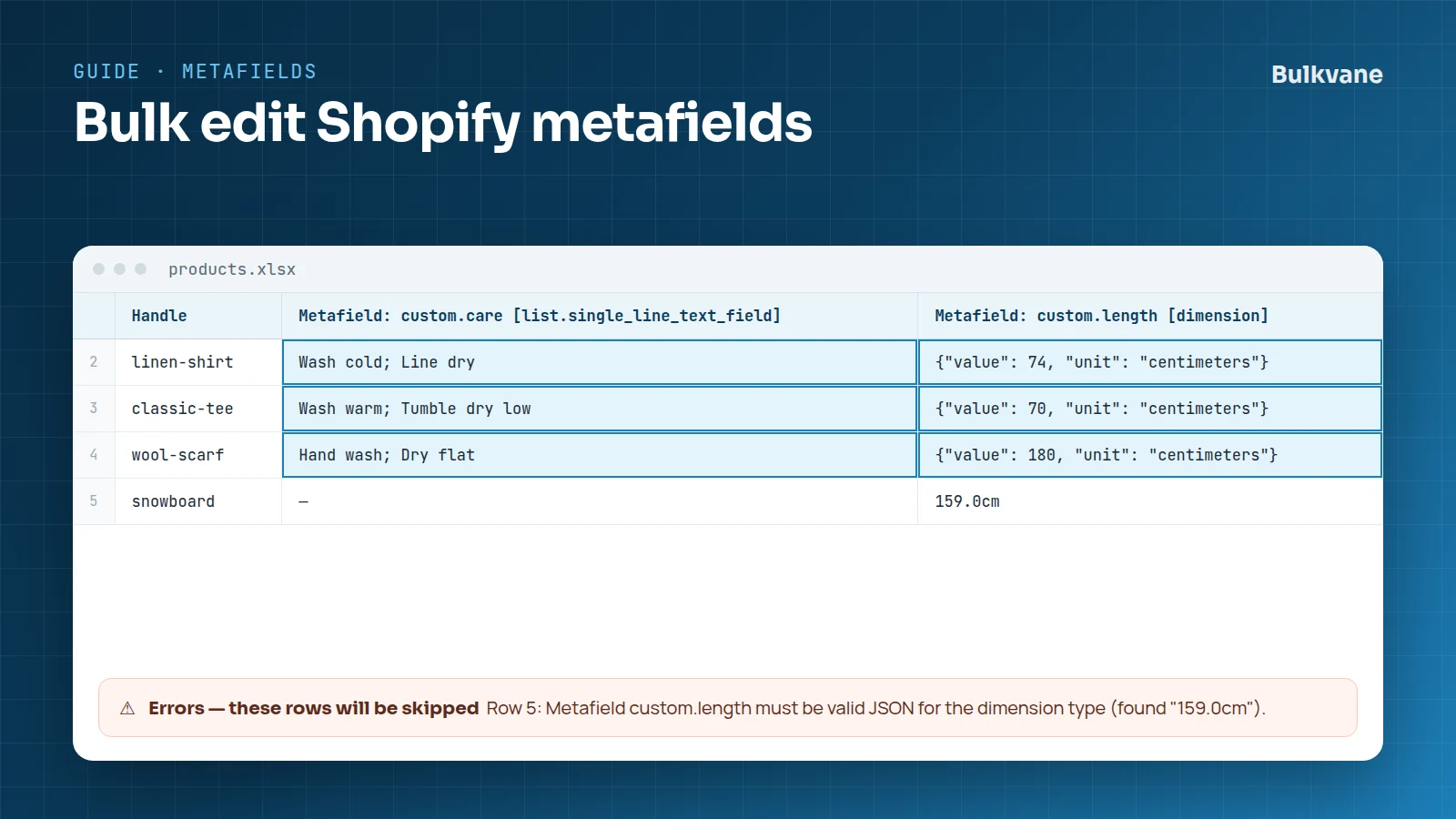
Metafields, definitions and metaobjects in one minute
- A metafield is a custom field on a product, variant, collection, customer, order or other item: material, care instructions, a size chart, a release date. It has a namespace and key (custom.material) and a type (single_line_text_field).
- A metafield definition tells Shopify a metafield exists: its name, type and validation. Definitions are what show the field on the product page in Shopify admin and make it available to your theme.
- A metaobject is a reusable entry with its own fields (a designer, an ingredient, a size chart) that metafields can point to.
Bulkvane handles all three from spreadsheets: metafield values as columns on product and variant rows, and definitions and metaobjects as their own data types.
Metafields are just columns
In a Bulkvane file, each metafield is one column. Two header styles work:
| Style | Product metafield | Variant metafield |
|---|---|---|
| Bulkvane | Metafield: custom.material [single_line_text_field] | Variant Metafield: custom.size_chart [single_line_text_field] |
| Shopify | Material (product.metafields.custom.material) | Size chart (variant.metafields.custom.size_chart) |
Product metafield values go on each product's first row, like the other product details. Variant metafield values go on each variant's own row. Orders, draft orders, pages and blog posts have metafield columns in their own files too.
1. Export the metafields you want to change
- In Bulkvane, open Export and choose Products.
- Open the columns. Your store's product and variant metafield definitions are listed as optional columns. Pick only the ones you need, so the file stays easy to read.
- Keep the ID, Handle and Variant ID columns, so the edits land on the right products and variants.
- Choose Excel and start the export.
2. Write values in the right format
Every value is checked against its type before anything is saved. Common spreadsheet formats are converted for you, and the preview tells you when they were:
| Type | Write it like | Converted for you |
|---|---|---|
| single_line_text_field, multi_line_text_field | Organic linen | — |
| number_integer | 12 | Thousands separators: 1,200 → 1200 |
| number_decimal | 19.50 | Decimal commas: 19,50 → 19.50 |
| boolean | true or false | yes/no, y/n, 1/0, on/off |
| date | 2026-09-30 | Other date formats Excel produces |
| date_time | 2026-09-30T14:00:00Z | — |
| color | #1D7FB8 | A missing # is added |
| url | https://example.com/care | — |
| dimension | {"value": 74, "unit": "cm"} | — |
| weight | {"value": 2.5, "unit": "kg"} | — |
| volume | {"value": 500, "unit": "ml"} | — |
| money | {"amount": "5.99", "currency_code": "CAD"} | — |
| rating | {"value": "4.5", "scale_min": "1.0", "scale_max": "5.0"} | — |
| json, rich_text_field | Valid JSON | — |
| product_reference, metaobject_reference and other references | gid://shopify/Product/7234567890123 | Shopify checks the reference |
| list.single_line_text_field and other lists | Wash cold; Line dry | Items split on “;” or new lines become a JSON list; a JSON array works too |
3. Import, check and apply
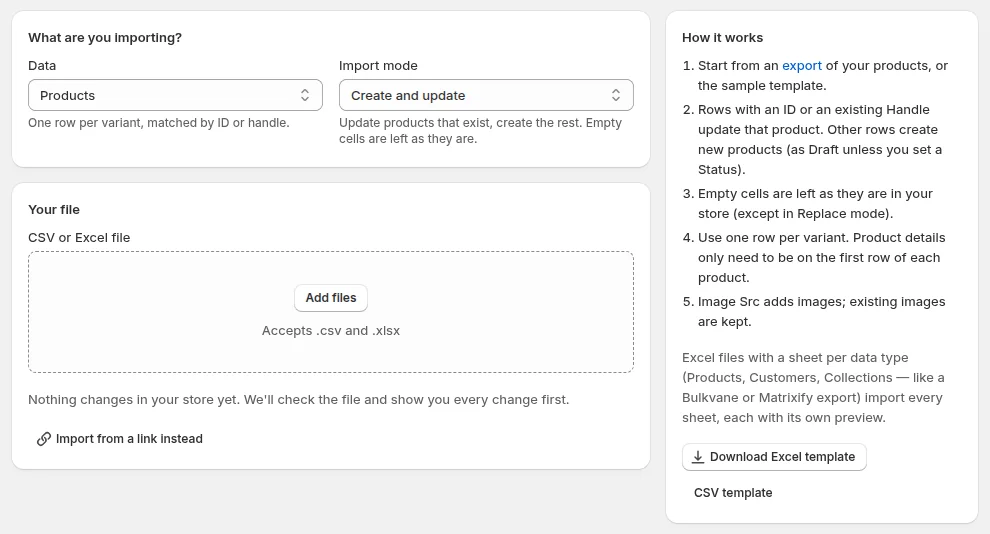
- Open Import, add the file and choose Update only, so no new products are created by mistake.
- Click Check file. The preview lists every metafield that will change, old value beside new, and every row with a problem.
- Apply. If anything looks wrong afterwards, undo the import for 30 days. Metafield values go back too.
Empty cells leave a metafield as it is. To remove values, use Replace mode: an empty cell then clears that metafield. See import modes.
Creating metafield definitions in bulk
Setting up twenty new fields by hand in Settings → Custom data is slow. Metafield definitions are their own data type in Bulkvane: one row per definition.
| Column | What it holds |
|---|---|
| Owner Type | What the field belongs to: product, variant, collection, customer, order, page, blog post and more |
| Namespace and Key | custom and material, for custom.material |
| Name | The label shown in Shopify admin, such as Material |
| Type | single_line_text_field, number_decimal, list.metaobject_reference… |
| Description | Help text for your team |
| Pinned | Whether it's pinned on the product page |
| Values | How many items use it (exported for reference only) |
- Import with Create and update to add new definitions and rename or describe existing ones.
- A definition's type can't be changed once it exists. Shopify doesn't allow it.
- Deleting a definition keeps the values already stored on your products, so Undo can bring the definition back.
Metaobjects: set up and fill custom data
Metaobjects take two sheets, and one Excel workbook can carry both so the type is set up and filled in one go:
- Metaobject definitions: one row per field, with Type, Name, Description, Field: Key, Field: Name, Field: Type and Field: Required. A new definition needs at least one field.
- Metaobjects: one row per entry, with Type, Handle, Status and a “Field: key” column for each field, like “Field: name” and “Field: country”. Values are checked against each field's type.
Then point product metafields at the entries with metaobject references. Definitions that already have entries aren't deleted from a file.
10 common metafield errors and how to fix them
| Message | Fix |
|---|---|
| Metafield custom.waterproof must be true or false (found “maybe”). | Use true or false; yes/no and 1/0 work too. |
| Metafield custom.pack_size must be a whole number (found “12.5”). | number_integer takes whole numbers only. Use a number_decimal field for decimals. |
| Metafield custom.length must be a number (found “approx 5”). | Remove words and units from number cells. |
| Metafield custom.release must be a date like 2026-09-30. | Write dates as year-month-day, or format the column as a date in Excel. |
| Metafield custom.launch must be a date and time like 2026-09-30T14:00:00Z. | Add the time and time zone. |
| Metafield custom.swatch must be a color like #1D7FB8. | Use a six-digit hex code; names like “navy” aren't colors to Shopify. |
| Metafield custom.guide must be a web address starting with https://. | Paste the full link, including https://. |
| Metafield custom.size must be valid JSON for the dimension type (found “159.0cm”). | Write {"value": 159, "unit": "cm"}. |
| Metafield custom.sizes must be a list of numbers, e.g. 1; 2; 3. | Separate the numbers with semicolons, with no units. |
| Value must be a valid product reference (from Shopify) | The referenced product doesn't exist yet, or the cell isn't a product ID. Import the products first, then the references. |
Every message has the row number in front, so you can jump straight to it. All of Bulkvane's messages are in Errors A–Z.
Good to know
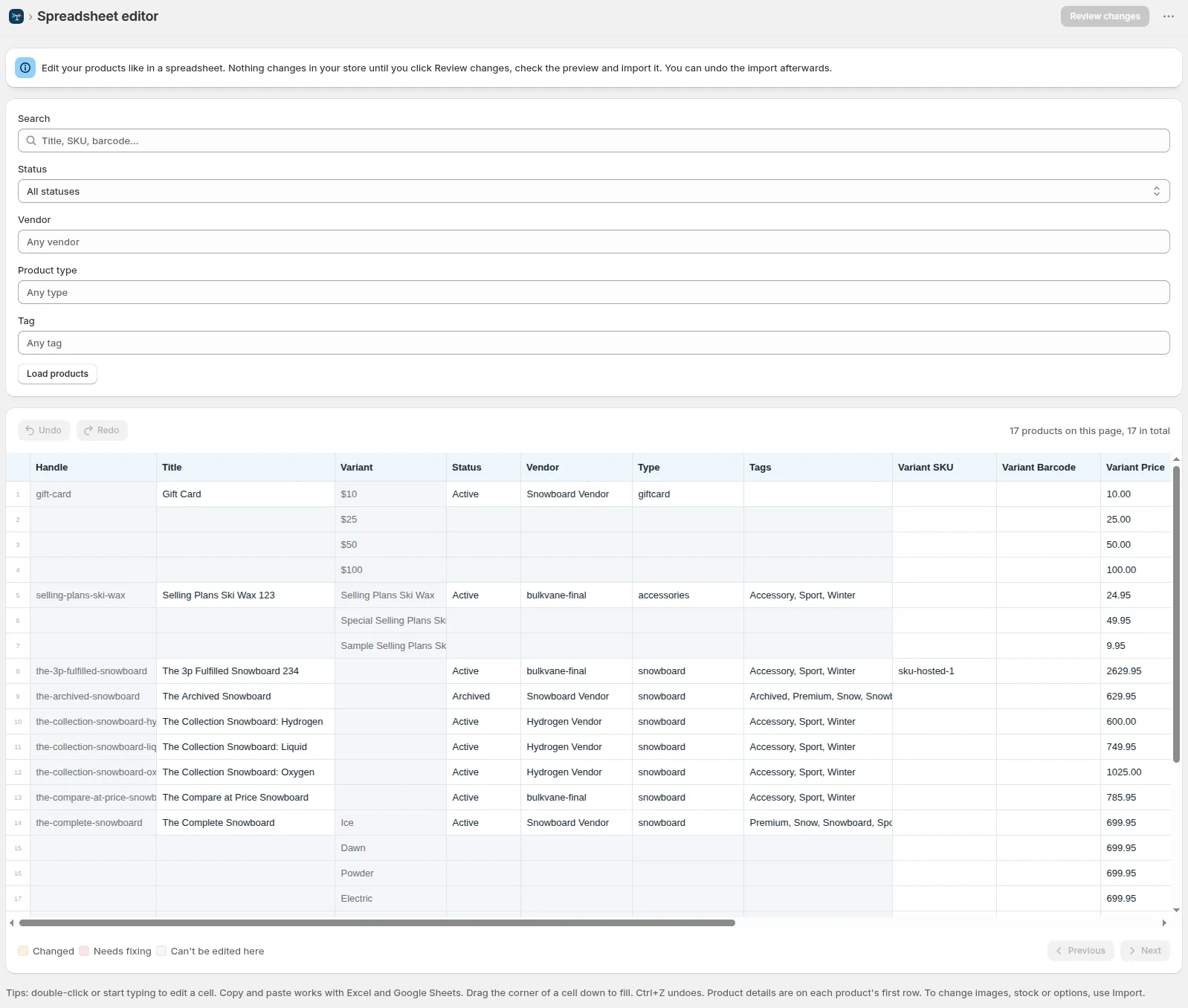
- The spreadsheet editor doesn't show metafield columns. Use an export and import.
- Smart collection conditions on metafields are exported but can't be changed from a file yet.
- Every column and header alias is in the column reference; there's more on metafields and inventory.
- This guide is part of how to bulk edit Shopify products.
Frequently asked questions
Can you bulk edit metafields in Shopify without an app?
Shopify's bulk editor can show metafield columns for the products you select, and Shopify's product CSV can include metafield columns. Neither checks types before saving or has an undo.
How do I bulk edit variant metafields?
Add a column named “Variant Metafield: namespace.key [type]” (or Shopify's “(variant.metafields.namespace.key)”) and put each variant's value on its own row.
How do I clear a metafield for many products?
Import the file in Replace mode with the metafield's cells empty. In the other modes, empty cells leave the value alone.
Can I create metafield definitions in bulk?
Yes. In Bulkvane, metafield definitions are their own data type: one row per definition with Owner Type, Namespace, Key, Name and Type.
Why does my dimension metafield fail?
Dimension, weight, volume, money and rating values are JSON in Shopify, for example {"value": 74, "unit": "cm"}. Text like “74cm” isn't accepted.
Related guides
How to bulk edit products in Shopify (2026 guide, 3 methods)
Bulk edit Shopify product data three ways (the admin bulk editor, a CSV import or an app), with steps for prices, tags, SEO, metafields, variants and stock.
· 14 min read
How to bulk edit Shopify variants: prices, SKUs, options and stock
Change prices, SKUs, barcodes, stock and metafields for thousands of Shopify variants at once, add new sizes or colours, and avoid replacing variant IDs.
· 4 min read
Shopify product spreadsheet: every column explained
What each column in a Shopify product export means, which ones you can change on import, and which are read-only, with examples for products and variants.
· 2 min read
How to bulk edit Shopify productsFree CSV templatesBrowse the help center
Preview every change.Undo any import for 30 days.
Install free