How to bulk edit Shopify variants: prices, SKUs, options and stock
Change prices, SKUs, barcodes, stock and metafields for thousands of Shopify variants at once, add new sizes or colours, and avoid replacing variant IDs.
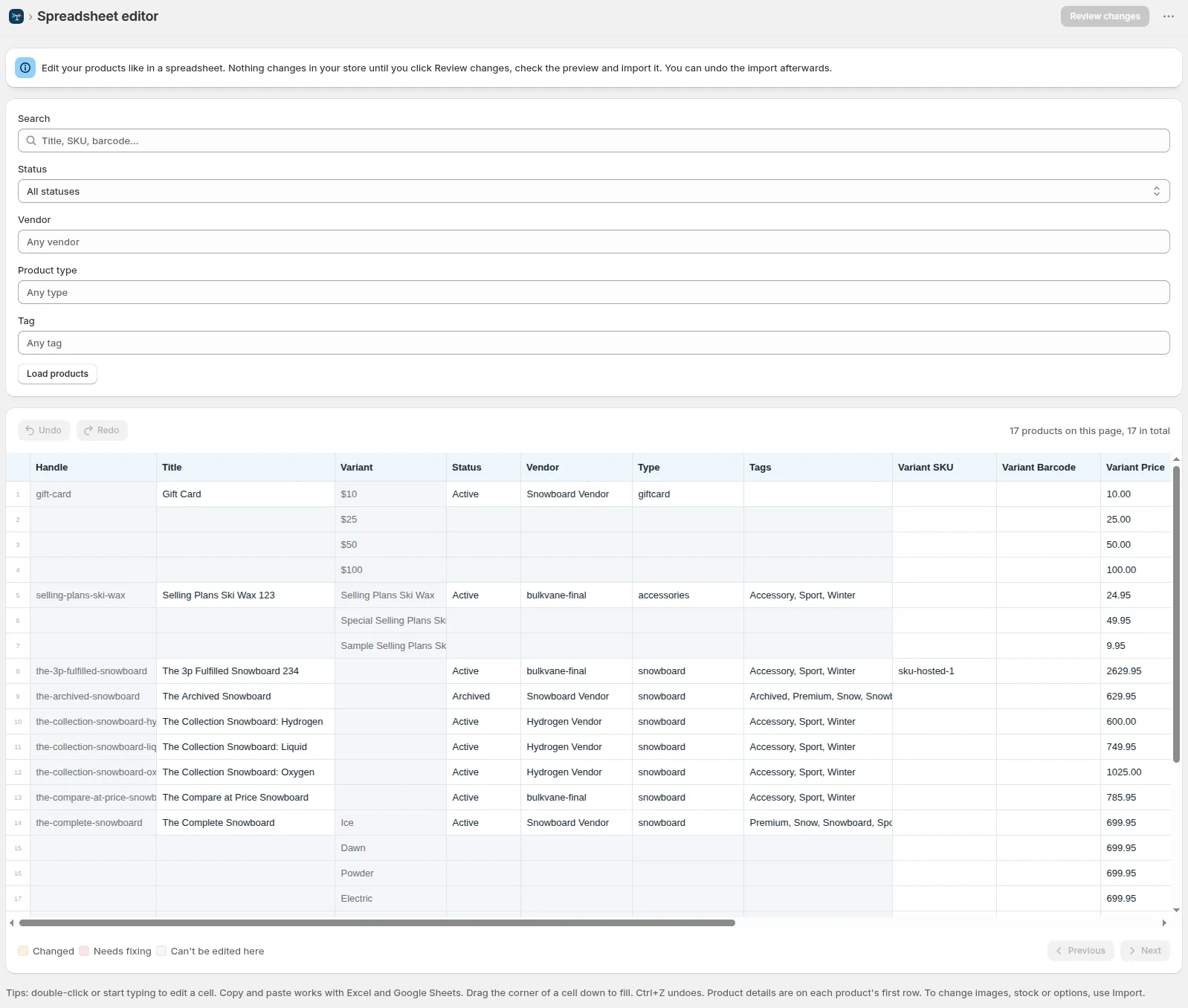
How variants look in a file
A product with three sizes has three rows. The product details (title, description, vendor, tags) are on the first row; every row repeats the Handle and holds one variant:
ID,Handle,Title,Option1 Name,Option1 Value,Variant ID,Variant SKU,Variant Price
7234567890123,linen-shirt,Linen Shirt,Size,S,4423456789011,LS-S,42.00
7234567890123,linen-shirt,,,M,4423456789012,LS-M,42.00
7234567890123,linen-shirt,,,L,4423456789013,LS-L,44.00
Option1–3 Name are set once per product (Size, Color, Material). Option1–3 Value are set on every variant row. If a row has an option value but its product has no option name, Bulkvane stops that row and asks for a name such as Size or Color.
How rows find their variant
Bulkvane matches each row to a variant by Variant ID first, then by SKU, then by option values. That order matters:
- Keep Variant ID in the file whenever you can. It never changes, so it always finds the right variant.
- No Variant ID? A unique SKU works nearly as well.
- With neither, the option values decide, so a typo in “Medium” can point the row at no variant at all.
The variant fields you can bulk edit
| Field | Column | In the spreadsheet editor? |
|---|---|---|
| Price | Variant Price | Yes |
| Compare-at price | Variant Compare At Price | Yes |
| SKU | Variant SKU | Yes |
| Barcode (ISBN, UPC, GTIN) | Variant Barcode | Yes |
| Available stock | Inventory: <location name>, one column per location | No, use a file |
| Variant metafields | Variant Metafield: namespace.key [type] | No, use a file |
| Total stock | Variant Inventory Qty (exported for reference, can't be imported) | — |
Bulk edit variants in four steps
- Export products with Bulkvane, filtered to the products you need, with the variant columns above. Choose Excel so long Variant IDs and barcodes stay exact.
- Edit the variant columns. For prices, a formula such as =ROUND(X2*1.1, 2) raises every variant by 10%; paste the result back over the column as values.
- Import with Update only and click Check file. The preview lists every variant that will change, field by field.
- Apply. Undo this import on the job page puts every variant back, for 30 days.
Adding a size or colour to existing products
Add a row with the product's Handle (or ID) and the new option values (say, Size XL) plus its SKU and price. Import with Create and update: the preview shows the new variant before it's created, and Undo removes it again.
Removing a row from the file doesn't delete that variant from Shopify. To remove single variants, delete them on the product page in Shopify admin.
Stock per variant and location
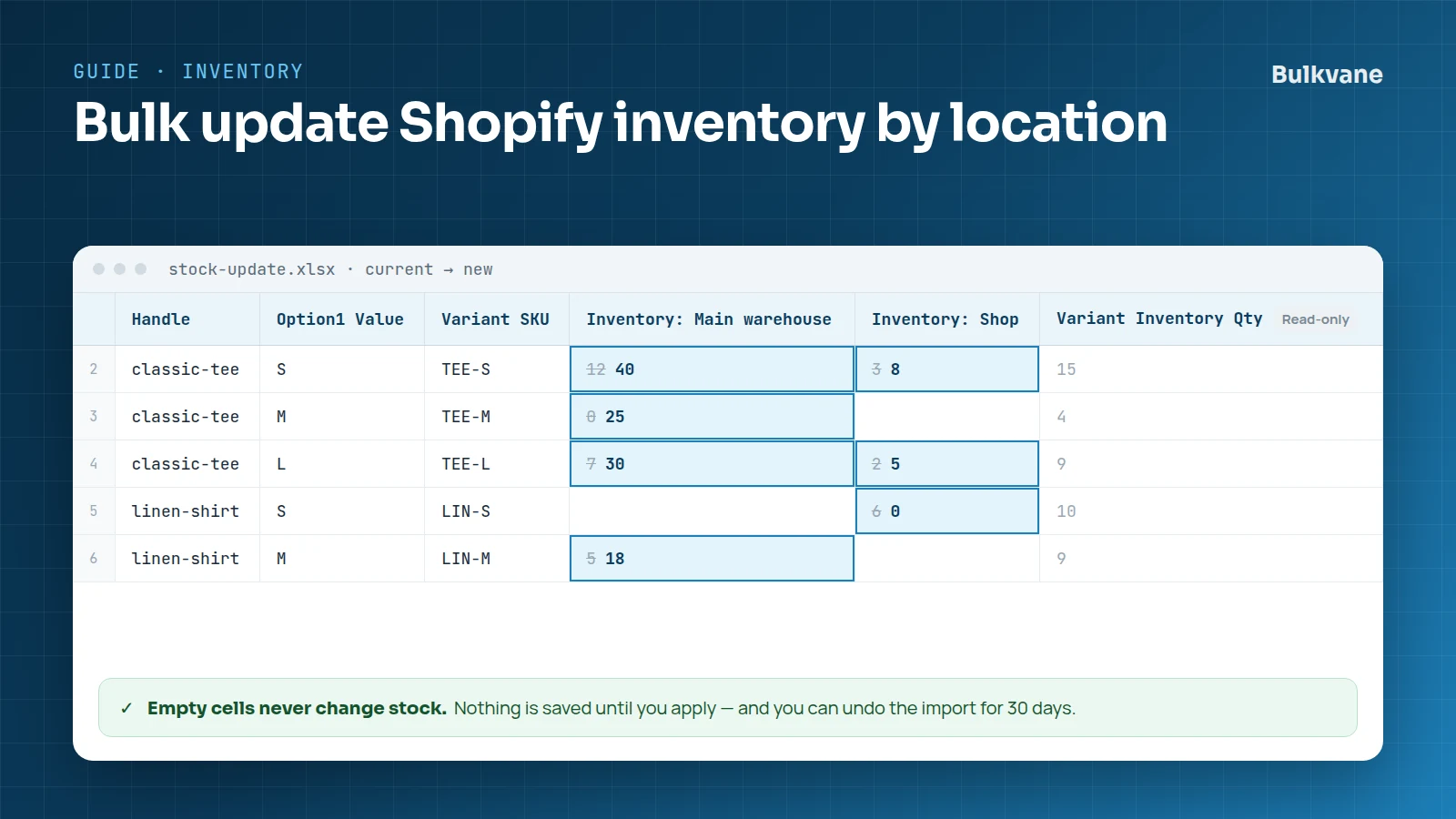
Each “Inventory: Main warehouse” column holds the available quantity at that location, as a whole number. Empty cells never change stock, and if a variant's stock changed between the preview and the import, Bulkvane skips it rather than overwrite a sale. See bulk updating inventory by location.
Variant metafields
Name a column “Variant Metafield: namespace.key [type]”, for example “Variant Metafield: custom.size_chart [single_line_text_field]”, or use Shopify's style “(variant.metafields.custom.size_chart)”. Values go on each variant's row and are checked against the type. New variants get their metafields when they're created. See how to bulk edit metafields.
For the bigger picture (admin bulk editor, CSV and apps), see how to bulk edit Shopify products.
Frequently asked questions
Can I bulk edit variant prices in Shopify?
Yes. In Shopify's bulk editor, add the Price column for the selected products. For many products, export a CSV, change the Variant Price column and import it back. Bulkvane shows every price change before it's saved and can undo the import.
Why did my variant IDs change after a CSV import?
Shopify's CSV import replaces a variant when its option values change, so it gets a new ID. Keep option values as they are when you only want to change prices, SKUs or stock.
Can I add variants to existing products with a spreadsheet?
Yes. In Bulkvane, add a row with the product's Handle and the new option values. The preview shows the new variant first, and Undo removes it.
Can I delete variants with a spreadsheet?
Not with Bulkvane: leaving a variant's row out of the file leaves the variant alone. Delete single variants in Shopify admin.
Related guides
How to bulk edit products in Shopify (2026 guide, 3 methods)
Bulk edit Shopify product data three ways (the admin bulk editor, a CSV import or an app), with steps for prices, tags, SEO, metafields, variants and stock.
· 14 min read
How to bulk edit prices in Shopify (and put them back)
Four ways to change many Shopify prices at once, how to schedule a sale with compare-at prices, and how to undo a price change that went wrong.
· 4 min read
How to bulk update Shopify inventory by location
Update stock for every variant at every location from one spreadsheet, with a before/after preview, a check for stock that changed, and undo.
· 2 min read
How to bulk edit Shopify productsFree CSV templatesBrowse the help center
Preview every change.Undo any import for 30 days.
Install free