How to bulk add, remove or change tags in Shopify
Bulk add, remove or rename Shopify product, customer and order tags: the built-in Add tags action, or a spreadsheet with a preview and 30-day undo.
The built-in way: Add tags and Remove tags in Shopify admin
Shopify's list pages have a bulk action for tags. It works on products, customers, orders, draft orders, blog posts, transfers and discounts:
- Open the list in Shopify admin, for example Products.
- Select the items you want to tag. Filter first (by vendor, type or an existing tag) to select the right ones quickly.
- Click the … (more actions) menu, then Add tags or Remove tags.
- Choose the tags and click Save.
It's quick for one tag on one group of products. It can't give each product its own tags, rename a tag everywhere at once, or show you a before and after. Shopify allows up to 250 tags per product, customer or order, and tags of up to 255 characters (40 for order tags). See [Shopify's guide to tags](https://help.shopify.com/en/manual/shopify-admin/productivity-tools/using-tags).
The one rule: the Tags cell is the full list
In a Bulkvane file, a product's Tags cell holds its whole tag list. Whatever is in the cell becomes the product's tags when you import it.
- To add a tag, keep the existing tags and add the new one: “summer, cotton” → “summer, cotton, sale”.
- To remove a tag, delete it from the cell.
- To rename a tag, replace it in the cell. Use Find and replace in Excel or Google Sheets on the Tags column.
- Leave the Tags column out of the file entirely to leave tags alone.
Bulk edit tags with a spreadsheet
- Export products, filtered by vendor, type, status or an existing tag, with the Tags column.
- Edit the Tags column in Excel or Google Sheets.
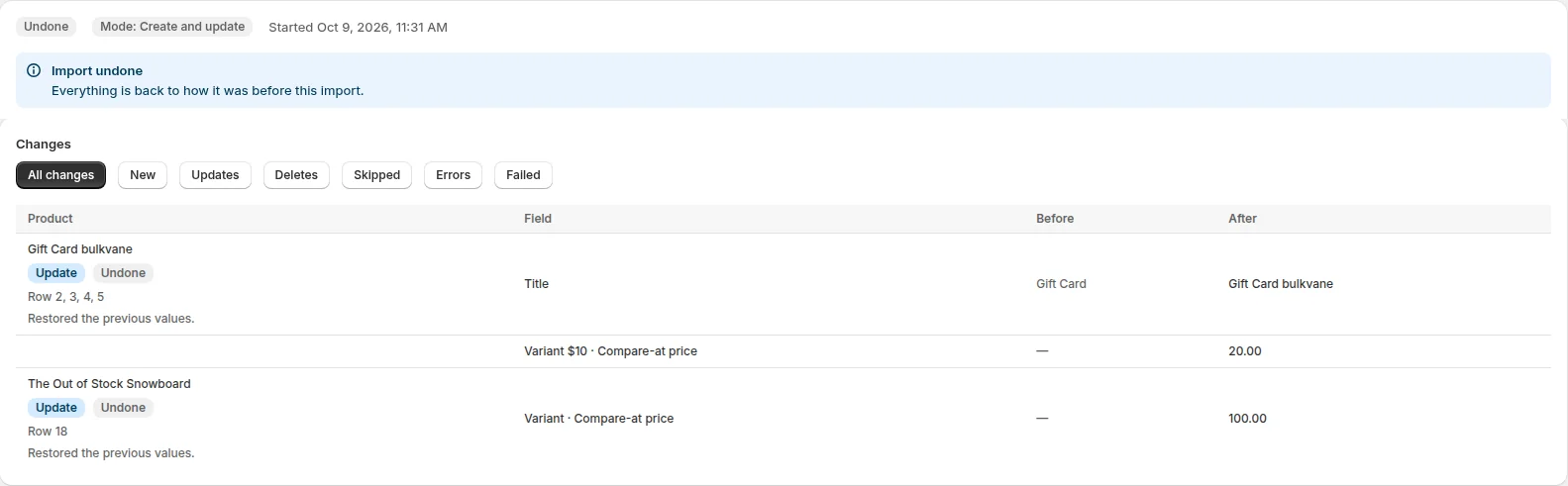
- Import with Update only and check the preview: every product's tags, before and after.
- Apply. Undo puts the old tags back for 30 days.
Or edit tags in a grid
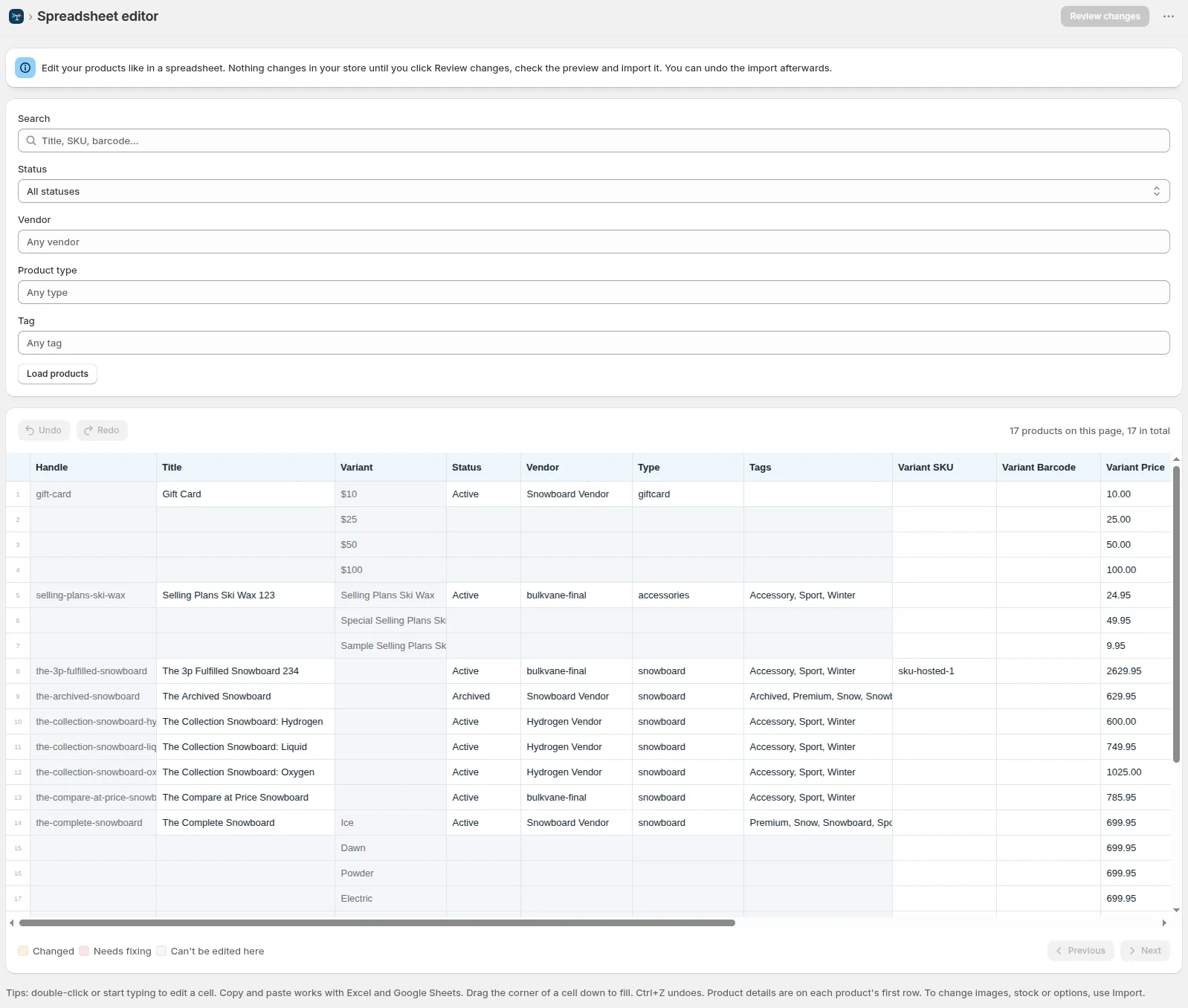
In Bulkvane's spreadsheet editor, filter products by tag, vendor or type, then edit the Tags column directly. Paste a value into many cells, or drag a cell's corner down to fill it. Review changes shows every edit before it's saved.
Separators and duplicates
Shopify separates tags with commas. If a file uses “;” or “|”, Bulkvane splits the tags the way Shopify expects and tells you it did. Repeated tags in a cell are kept once.
Customer tags
Customer files work the same way: the Tags cell is the customer's full tag list, and customers are matched by ID, then email. See importing customers.
Order tags
For one tag on many orders, Shopify's Add tags action on the Orders page is the quickest way. Bulkvane can also export orders and import tag, note and metafield changes back, but it doesn't create past orders. See bulk import and export.
Related guides
- Tags are one part of how to bulk edit Shopify products.
- Tag products for a sale, then schedule a Black Friday sale on them.
- Changed tags you didn't mean to? See how to undo a Shopify bulk edit.
Frequently asked questions
How do I add a tag to many products at once in Shopify?
On the Products page, select the products, click the … menu, then Add tags. Choose the tag and save. Every selected product gets the same tag.
How do I remove a tag from all products in Shopify?
Filter the Products page by that tag, select all the products, then use … → Remove tags. With a file, delete the tag from each Tags cell and import it with Update only.
Can I rename a tag in Shopify?
Shopify's bulk actions only add and remove tags. To rename one, add the new tag and remove the old one, or use Find and replace on the Tags column of an export and import it back.
Does importing a Tags column replace the existing tags?
In Bulkvane, yes: the Tags cell is the product's full tag list. Start from an export so the existing tags are already in the cell, and leave the column out to keep tags as they are.
Can I undo a bulk tag change?
Shopify's bulk actions and CSV import have no undo button. A Bulkvane import can be undone for 30 days, which puts the old tags back.
Related guides
How to bulk edit products in Shopify (2026 guide, 3 methods)
Bulk edit Shopify product data three ways (the admin bulk editor, a CSV import or an app), with steps for prices, tags, SEO, metafields, variants and stock.
· 14 min read
Can you undo a bulk edit in Shopify? What works and what doesn't
Shopify's bulk editor and CSV import have no undo. How to recover from a bad bulk edit with a backup, and how to make future imports undoable in one click.
· 3 min read
How to run a Black Friday sale on Shopify that ends by itself
Set up a Shopify Black Friday and Cyber Monday sale in advance: pick products, schedule the price drop, show compare-at prices and restore prices automatically.
· 5 min read
How to bulk edit Shopify productsFree CSV templatesBrowse the help center
Preview every change.Undo any import for 30 days.
Install free