Can you undo a bulk edit in Shopify? What works and what doesn't
Shopify's bulk editor and CSV import have no undo. How to recover from a bad bulk edit with a backup, and how to make future imports undoable in one click.
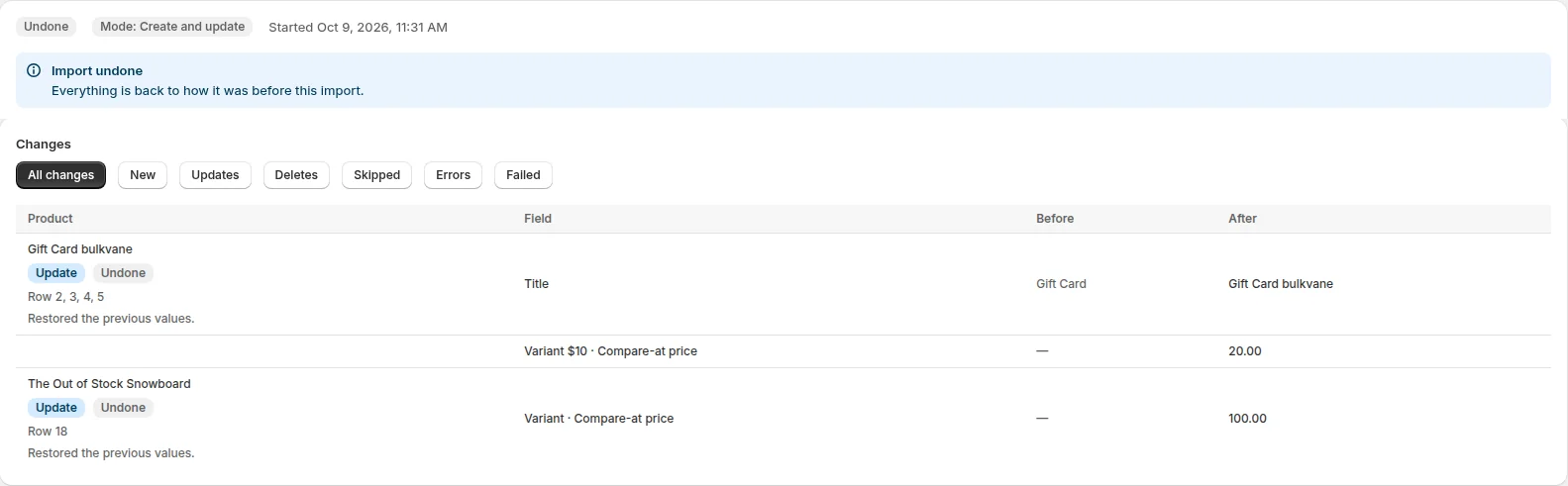
What Shopify can and can't take back
- Bulk editor: changes are saved when you click Save. There's no undo or version history afterwards.
- CSV import: product imports can't be cancelled once they begin, can't be undone, and Shopify keeps no history of past imports.
- Deleted products: deleting a product is permanent. Archiving is the reversible alternative.
That's why Shopify's own help center tells you to export a backup of your products before you import a CSV.
Recovering from a bad bulk edit now
- Stop. Don't run another import on top of the bad one until you know what changed.
- Find your last export from before the change: on your computer, in your email (Shopify emails some exports instead of downloading them), or in the app you used.
- Open it and keep only the columns that were damaged, plus Handle (and ID, if it has one). Fewer columns means less chance of overwriting something that was fine.
- Import it with Shopify's “Overwrite products with matching handles” ticked, or with an app in Update only mode.
- Check a handful of products on the storefront before you move on.
Making imports undoable
Bulkvane saves a snapshot of every item an import will touch before it changes anything. For 30 days afterwards, one click puts it all back:
- Open Job history and click the import.
- Click Undo this import and confirm.
- Bulkvane restores the fields the import changed, deletes items it created and re-creates items it deleted. The job page shows the result for each item.
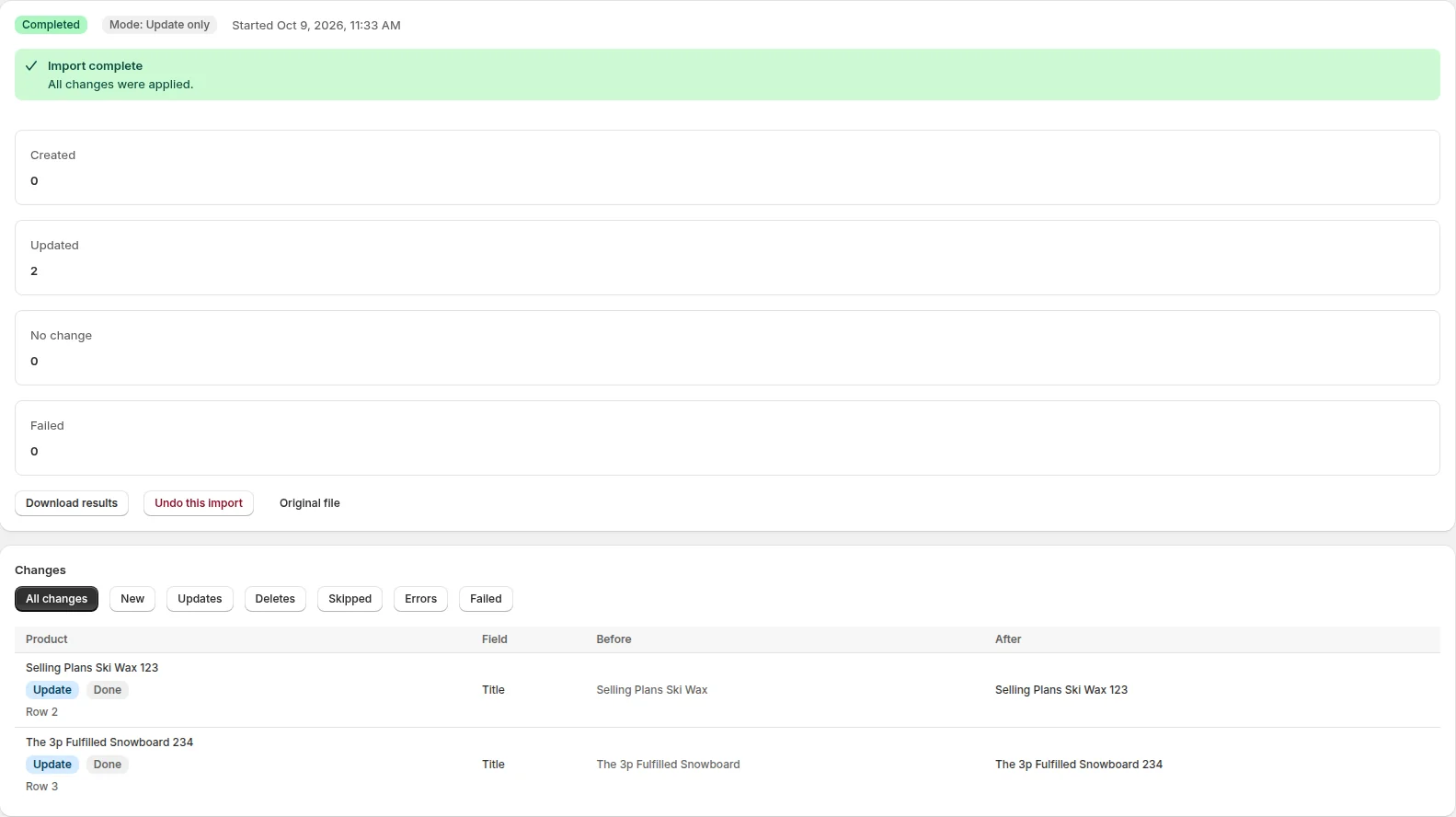
What Undo restores, and what it doesn't
| Restored | Not restored |
|---|---|
| Titles, descriptions, vendors, types, tags, status and SEO | Orders and analytics |
| Prices, compare-at prices, SKUs and barcodes | Changes made by other apps or by hand after the import. Undo replaces them with the earlier values too |
| Metafields and stock per location | The original IDs of deleted items (re-created items get new IDs) |
| Customers, collections and the other data types, with their own fields | Anything after the 30-day window, when the snapshot is deleted |
| Images the import added are removed; created items are deleted; deleted items are re-created |
Undo is available on every plan, Free included. If an import stopped halfway, Undo still works on the items it changed. See undo an import for the details.
Fewer reasons to undo
- Read the preview: every field, old beside new, before anything is saved: preview changes.
- Use Update only when you're changing existing products, so no stray row creates a new one: import modes.
- Test on five products first.
- Keep exporting backups, even with an undo. A backup has no 30-day limit.
For the full method, see how to bulk edit Shopify products. Deleting on purpose? Bulk delete with undo covers it.
Frequently asked questions
Can I undo a Shopify CSV import?
No. Shopify's product CSV import can't be cancelled once it begins and has no undo. Re-import a backup export to put values back.
Is there an undo for Shopify's bulk editor?
No. Changes are saved when you click Save, and there's no version history to roll back to.
How long can I undo a Bulkvane import?
For 30 days after the import finishes, on every plan. After that the snapshot is deleted with the job's files.
Can deleted products be restored?
Not in Shopify itself. Deletion is permanent. If the products were deleted by a Bulkvane import, Undo re-creates them, with new IDs.
Related guides
How to bulk edit products in Shopify (2026 guide, 3 methods)
Bulk edit Shopify product data three ways (the admin bulk editor, a CSV import or an app), with steps for prices, tags, SEO, metafields, variants and stock.
· 14 min read
How to back up Shopify products (and restore them)
Shopify doesn't back up your catalog, and deleted products can't be recovered. How to back up products, customers and collections yourself, and restore them.
· 3 min read
How to bulk delete Shopify products, customers or collections (with undo)
Delete hundreds of Shopify products, customers or collections from a list, confirm it first, and undo the deletion for 30 days, or archive instead of deleting.
· 2 min read
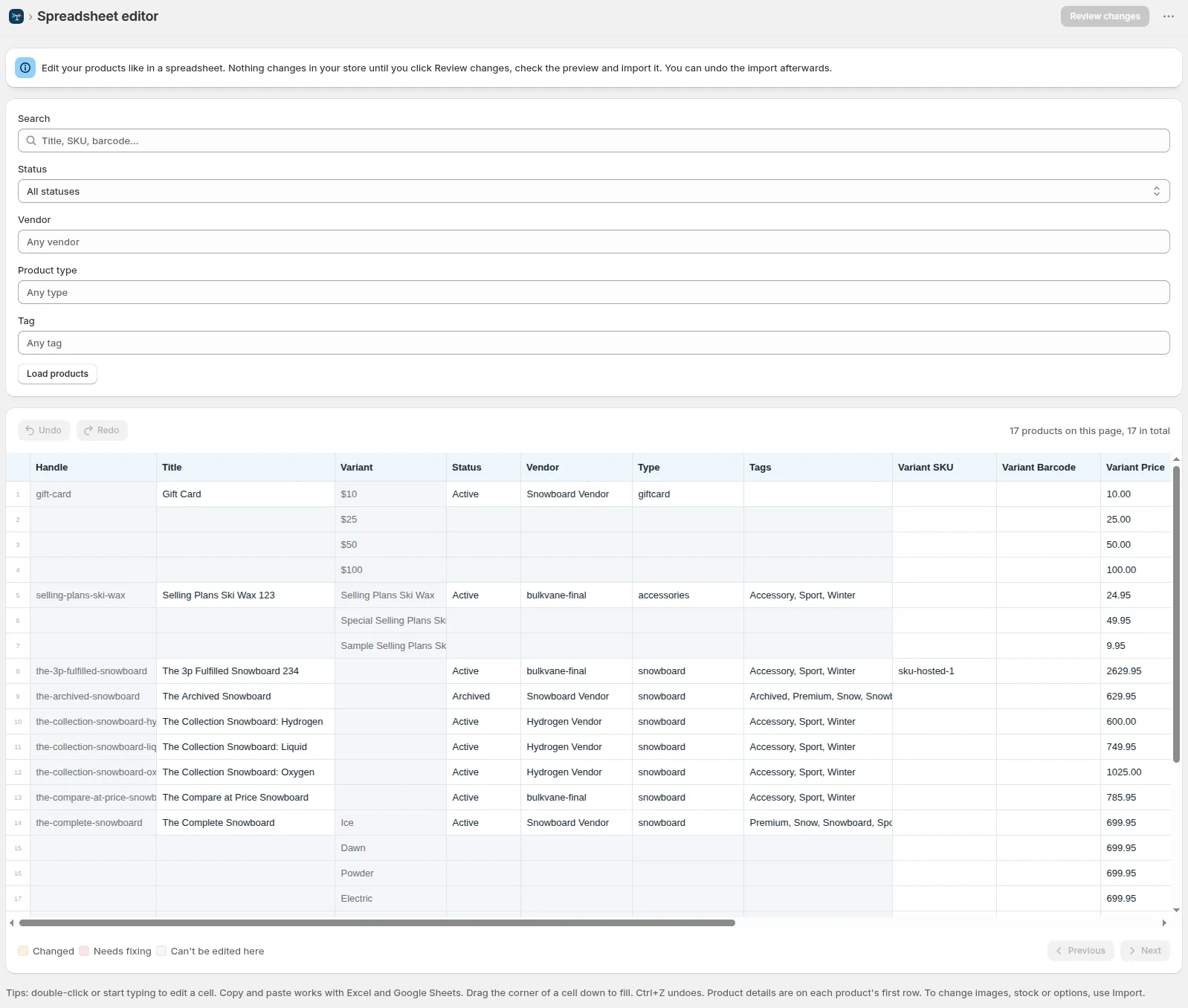
How to bulk edit Shopify productsFree CSV templatesBrowse the help center
Preview every change.Undo any import for 30 days.
Install free