How to export Shopify products to Excel (and keep IDs intact)
Export Shopify products to Excel with Shopify's CSV export or a real .xlsx file, keep long IDs and barcodes exact, and choose the columns you need.
Option 1: Shopify's own export
- In Shopify admin, go to Products and click Export.
- Choose what to export: the current page, all products, the products you selected, or the products matching your search and filters.
- Choose CSV for Excel, Numbers or other spreadsheet programs.
- Click Export products. Small exports download straight away; Shopify emails the file instead when a selected product has more than 100 variants. Very large exports can time out, and Shopify suggests filtering them into smaller files.
- The file is a CSV, not an Excel workbook: one sheet, no formatting, and Excel decides how to read every column when you open it.
- It includes image links (Image Src), not the image files themselves.
- SEO Title and SEO Description are blank unless you've customised them.
What Excel does to a Shopify CSV
Double-clicking a CSV lets Excel guess each column's type. For product data, it often guesses wrong:
- Product and variant IDs are 13 or more digits. Excel shows them as 7.23457E+12 and, when you save, keeps only the rounded number. The real ID is gone.
- Barcodes and SKUs with leading zeros, such as 0012345678905, lose them.
- SKUs like 1-2 or MAR10 can turn into dates.
- Accented letters can turn into strange characters if the file isn't read as UTF-8.
To open a Shopify CSV safely, don't double-click it. In Excel, use Data → From Text/CSV, choose UTF-8, click Transform Data, set the ID, Variant ID, SKU and Barcode columns to Text, then load it. In Google Sheets, File → Import keeps long numbers as text if you untick “Convert text to numbers, dates and formulas”.
Option 2: Export a real Excel file with Bulkvane
- Install Bulkvane and open Export.
- Choose Products. Filter by status, vendor, product type, tag or created date, or export everything.
- Pick your columns. Body HTML (the description) is off by default to keep the file light; tick it if you need it. Add product and variant metafield definitions and the inventory locations you want as columns.
- Choose Excel (.xlsx) so IDs and barcodes stay exact, and start the export.
- Download the file from the job page. On paid plans you can also get an email when it's ready.
Exports use Shopify's Bulk Operations API, so large catalogs export in the background without hitting rate limits. One export can include up to your plan's items per job: 10 products on Free, 5,000 on Starter, 50,000 on Growth and 100,000 on Pro.
Products, customers and collections in one workbook
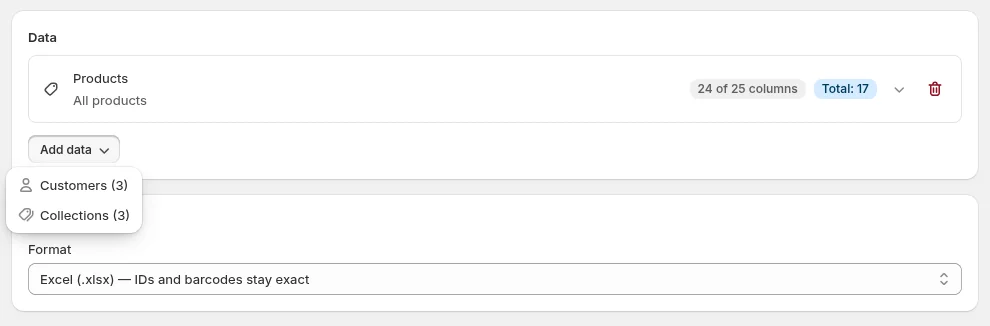
Click Add data to put more than one data type in the same export: customers, collections, orders, discounts, pages and more. The Excel file gets one sheet per type, and importing it back makes one job per sheet, each with its own preview. See several data types in one file.
Export straight from the Products list
On the Products page in Shopify admin, select products and choose More actions → Export with Bulkvane, or use Export all with Bulkvane for the whole list. The same works on the Customers and Collections pages.
Editing and importing the file back
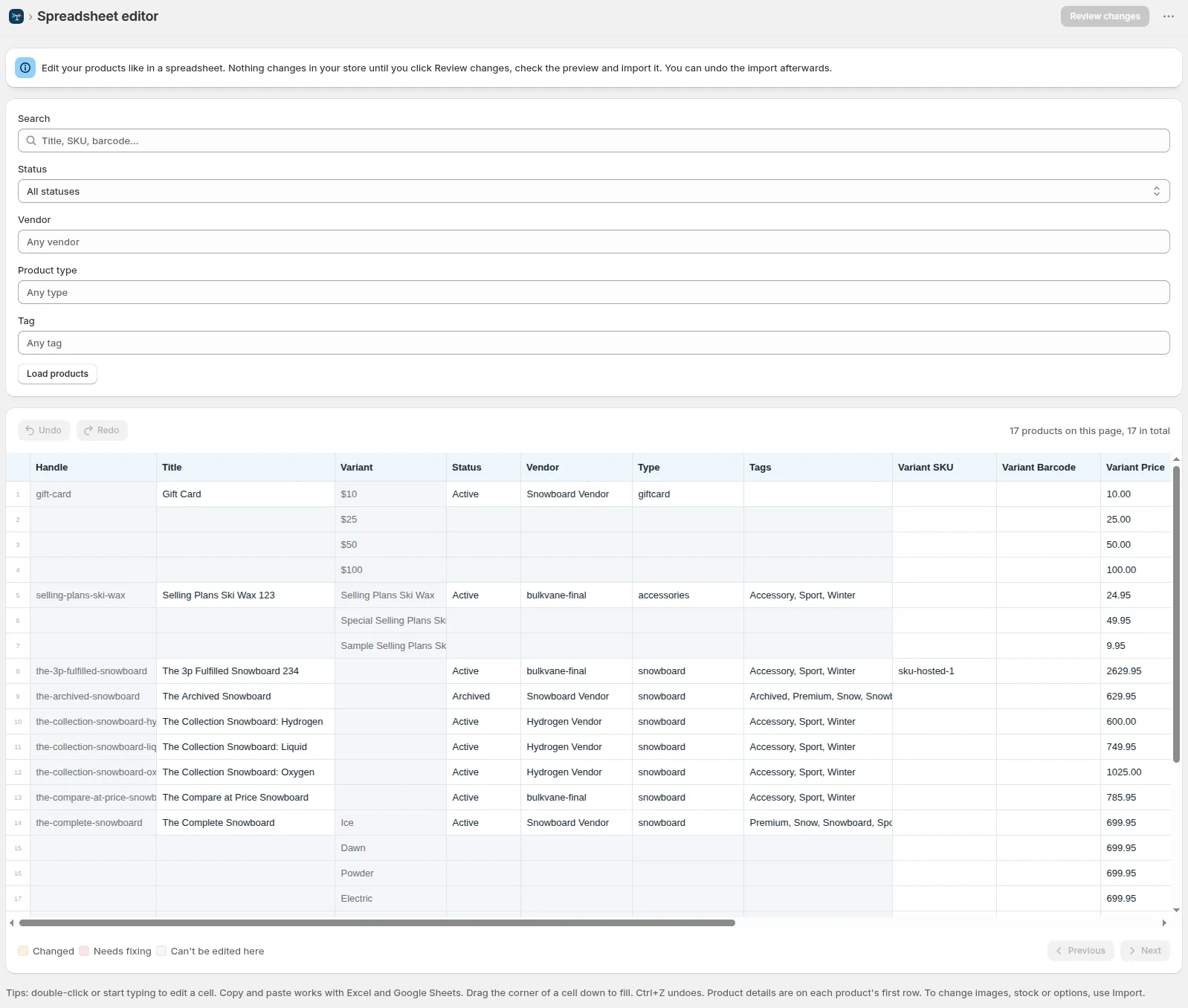
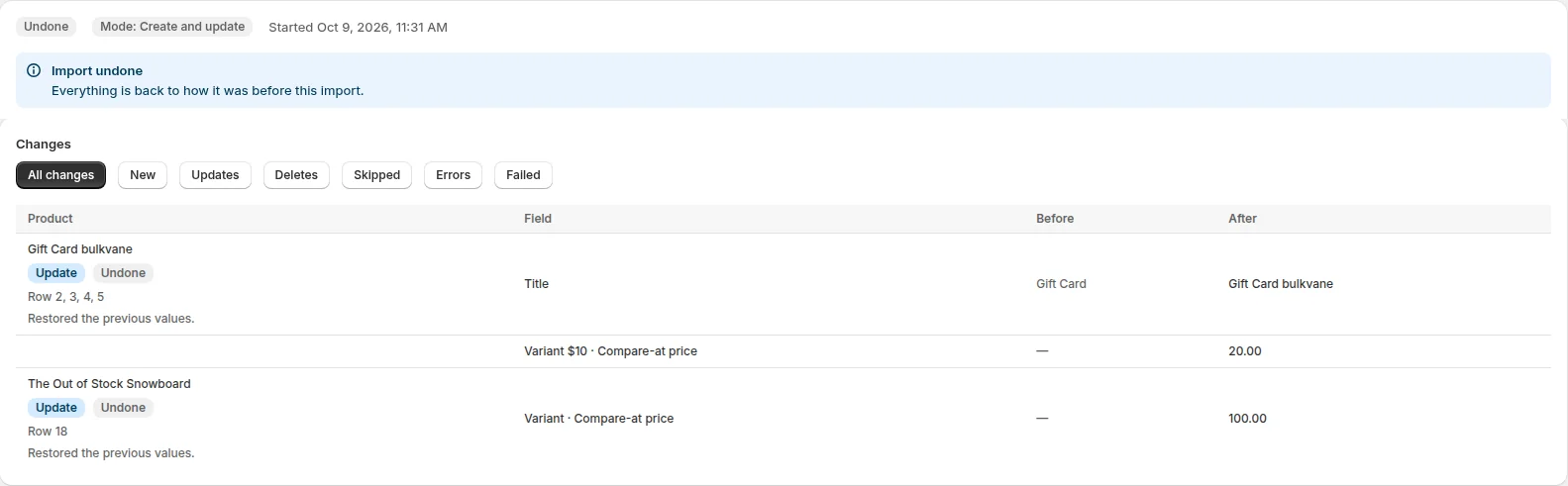
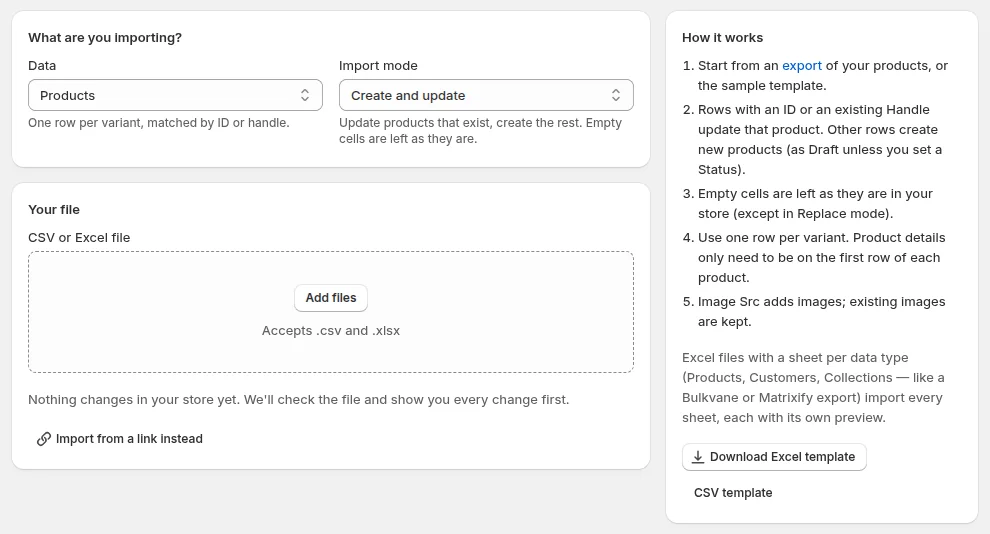
Keep the ID and Variant ID columns, change only what you need, and import the file with Update only. Bulkvane shows every change, old beside new, before it's saved, and the import can be undone for 30 days. The full walkthrough is in how to bulk edit Shopify products; every column is in the column reference.
Frequently asked questions
Can Shopify export products directly to Excel?
Shopify exports a CSV file labelled “CSV for Excel, Numbers or other spreadsheet programs”. It isn't an .xlsx workbook. Apps such as Bulkvane export real Excel files.
Why do my Shopify product IDs look like 7.2E+12 in Excel?
Excel reads long numbers in a CSV as numbers and shows them in scientific notation. Saving the file keeps the rounded number, so the IDs no longer match. Import the CSV with those columns set to Text, or export to .xlsx instead.
Does the Shopify product export include images?
It includes each image's link in the Image Src column, not the image files.
Can I export only some products?
Yes. Shopify can export selected products or the products matching a search. Bulkvane can filter by status, vendor, product type, tag and created date, or export the products you select in Shopify admin.
Related guides
How to bulk edit products in Shopify (2026 guide, 3 methods)
Bulk edit Shopify product data three ways (the admin bulk editor, a CSV import or an app), with steps for prices, tags, SEO, metafields, variants and stock.
· 14 min read
How to back up Shopify products (and restore them)
Shopify doesn't back up your catalog, and deleted products can't be recovered. How to back up products, customers and collections yourself, and restore them.
· 3 min read
Shopify product spreadsheet: every column explained
What each column in a Shopify product export means, which ones you can change on import, and which are read-only, with examples for products and variants.
· 2 min read
How to bulk edit Shopify productsFree CSV templatesBrowse the help center
Preview every change.Undo any import for 30 days.
Install free