How to import Shopify products with images (CSV and Excel)
Add product images to Shopify from a CSV or Excel file: image links, several images per product, what happens to existing images, and why images go missing.
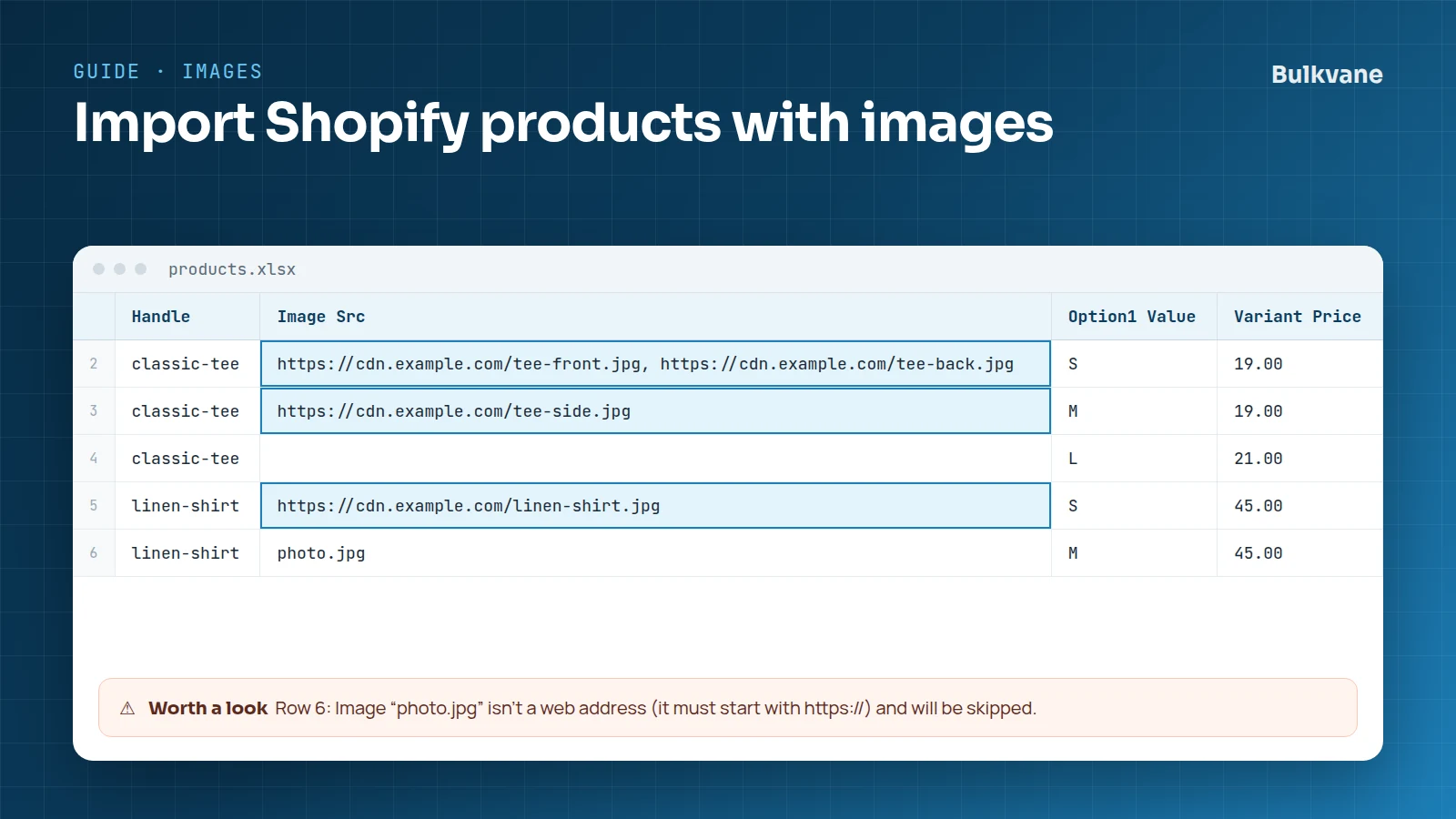
Images are imported from links
A spreadsheet can't hold the image itself, so the Image Src column holds a public web address that starts with https://. Shopify downloads the image from that link during the import.
- Links to images on your supplier's site or a CDN work as they are.
- Images on your computer need uploading first (for example to Files in Shopify admin). Then paste their links into the file.
- A file name such as “photo.jpg” isn't a link. Bulkvane skips it and tells you.
Several images for one product
- Put several links in one Image Src cell, separated by commas, or
- put one link on each of the product's variant rows.
Bulkvane collects every link from all of a product's rows and adds each image once.
What happens to images a product already has
Image Src adds images. Images a product already has are kept, so you can add new photos without touching the old ones. To remove or reorder images, use Shopify admin.
If you add the wrong images, undo the import: images the import added are removed again, for 30 days.
Exporting products with images
A Bulkvane product export includes Image Src with each product's image links, separated by commas. That's handy for copying a catalog's images to another store, or for checking which products have no image.
What isn't imported
- Variant images and image alt text columns from Shopify's CSV are ignored. Bulkvane lists ignored columns before anything changes.
- A collection's image can be set when the collection is created, but changing an existing collection's image isn't supported.
Why images go missing
- The link isn't public: it needs a sign-in, or it's a share page rather than the image itself.
- The link has a typo, or the image was moved.
- Rows were sorted in Excel, so extra image rows ended up under the wrong product. Keep each product's rows together.
- More fixes in Shopify CSV import not working?
Frequently asked questions
How do I add several images to one product in a CSV?
Separate the links with commas in one Image Src cell, or put one link on each of the product's rows. Bulkvane collects every link and adds each image once.
Does importing images replace the ones a product already has?
No. Image Src adds images and keeps the existing ones. To remove or reorder images, use Shopify admin.
Why are my images missing after the import?
The link isn't public, has a typo or points to a moved image, or the rows were sorted in Excel so image rows ended up under the wrong product.
Can I use images from Google Drive or Dropbox?
Only if the link opens the image itself. A share page that shows the image inside Google Drive or Dropbox isn't an image link, so it won't import.
Related guides
How to bulk edit products in Shopify (2026 guide, 3 methods)
Bulk edit Shopify product data three ways (the admin bulk editor, a CSV import or an app), with steps for prices, tags, SEO, metafields, variants and stock.
· 14 min read
Import supplier CSV files into Shopify over FTP or SFTP
A practical guide to importing supplier CSV files via FTP, FTPS or SFTP into Shopify: SKUs, inventory locations, preview and safe updates.
· 2 min read
How to schedule Shopify product exports daily or weekly
Set up recurring Shopify CSV or Excel exports with saved templates, daily or weekly schedules, job history and completion notifications.
· 2 min read
How to bulk edit Shopify productsFree CSV templatesBrowse the help center
Preview every change.Undo any import for 30 days.
Install free