Shopify CSV import not working? 11 causes and how to fix them
Why a Shopify CSV import fails or imported products don't show up (file size, IDs, handles, prices, images, status) and how to fix each one.
1. The file is too big
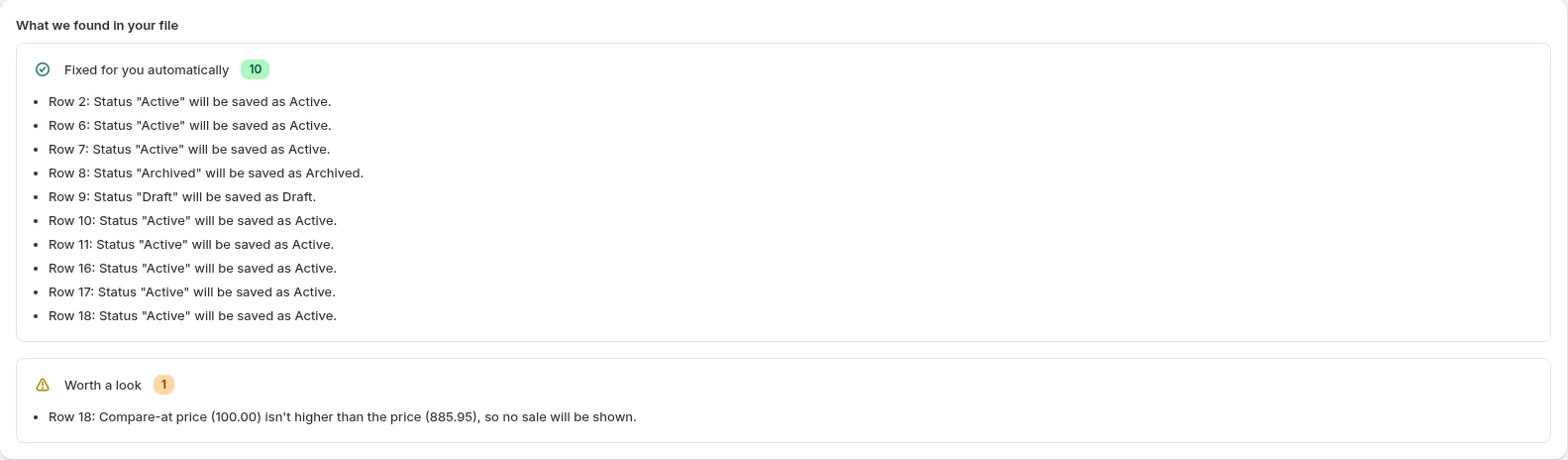
Shopify's built-in product importer takes CSV files up to 15 MB and suggests splitting larger files. Bulkvane limits items per job instead (for products, 10 on Free up to 100,000 on Pro) and tells you before anything changes if a file has more.
2. IDs were shortened by Excel
Shopify IDs are long numbers, and Excel shows them as 7.2E+12, losing the real ID when you save. Format the ID and Variant ID columns as Text before you edit, or export again. Bulkvane spots shortened IDs and stops those rows with a message instead of updating the wrong product.
3. Rows have no handle
Every row needs something that identifies its product, usually the Handle. Variant rows often lose it when rows are copied. Put the Handle on every row.
4. Handles have spaces or capitals
Handles use lowercase letters, numbers and dashes. “Blue Shirt” isn't a valid handle. Bulkvane converts it to “blue-shirt” and tells you; a row whose handle has no letters or numbers at all is stopped.
5. Prices have commas or currency symbols
“19,50 €” isn't a number Shopify understands. Bulkvane converts decimal commas and currency symbols, and stops rows where a price isn't a number at all, such as “abc”.
6. Images are missing after the import
Images are imported from public web links, not from files on your computer, so “photo.jpg” won't work. Upload the image first and paste its https:// link. Shopify also warns that sorting a product CSV in Excel or Numbers can lose images, because it separates image rows from their product. If Shopify stops with “Validation failed: Src can't be blank”, a row has image alt text or a position but no link in Image Src. Here's how to fix “Src can't be blank”. See also importing products with images.
7. Products imported, but they don't show in the store
- Check the Status. Bulkvane creates new products as Draft unless the file sets a Status, so set Status to Active for products that should go live.
- Check the product is available on your Online Store sales channel in Shopify admin.
- Archived products don't show in the store either.
8. Existing products weren't updated
Shopify's built-in importer ignores products whose handles already exist unless you tick “Overwrite products with matching handles”, and then blank columns overwrite values with blank. In Bulkvane, choose Create and update or Update only and keep the ID or Handle column; empty cells leave values alone except in Replace mode. See import modes.
9. A product ID isn't in the store any more
If a product in your file was deleted from Shopify, its ID no longer matches anything. Bulkvane says so: “Product ID … wasn't found in your store — it may have been deleted. Clear the ID cell to create it as a new product.”
10. A customer import fails
- Phone numbers need a country code, for example +351 912 345 678.
- Customers are matched by ID, then email, so an email that's already in your store updates that customer.
- Country names such as “Portugal” are converted to codes (PT) automatically.
- Customers with orders can't be deleted.
- Marketing consent can't be imported. It has to come from the customer. See importing customers.
11. Accents turn into é or �: the file isn't UTF-8
Shopify and Bulkvane read CSV files as UTF-8. If a spreadsheet program saved the file in another encoding (older Excel versions often use Windows-1252), letters outside plain English break: “Café” arrives as “Café” or “Caf�”, and French, Spanish or German product names are damaged.
- Excel: File → Save As → “CSV UTF-8 (Comma delimited)”, not plain “CSV (Comma delimited)”.
- Google Sheets: File → Download → Comma-separated values. Google Sheets always saves UTF-8.
- Numbers: File → Export To → CSV, with Text Encoding set to Unicode (UTF-8).
- Or skip CSV entirely: Bulkvane imports Excel (.xlsx) files directly, and .xlsx has no encoding problem.
Bulkvane's own CSV exports are UTF-8 with the marker Excel looks for, so accents open correctly in Excel. If a file is already damaged, fix it at the source and save it again as UTF-8 (more on Shopify CSV encoding errors). The preview shows the text exactly as it will be saved, so you can check names before you apply.
Catch problems before they reach your store
Most of these problems are only visible after a normal import has run. Bulkvane checks the file first: it fixes what it safely can, explains the rest row by row, and shows every change before anything is saved. If an import still goes wrong, you can undo it for 30 days. See every message, A–Z.
Frequently asked questions
Why are my products not importing into Shopify?
Check the file first. It has to be under Shopify's 15 MB limit and saved as UTF-8, with the Handle on every row, prices as plain numbers and IDs that Excel hasn't shortened. If the import ran but existing products didn't change, tick “Overwrite products with matching handles” in Shopify's importer.
Why are my imported products not showing in my Shopify store?
Check that the Status is Active, that the product is available on the Online Store sales channel and that it isn't archived. Bulkvane creates new products as Draft unless the file sets a Status.
What is the file size limit for a Shopify product CSV?
Shopify's built-in importer takes files up to 15 MB, so split anything bigger. Bulkvane limits the number of items per job instead, which depends on your plan.
Why do accents turn into é after an import?
The file wasn't saved as UTF-8. In Excel, use Save As → CSV UTF-8 (Comma delimited), or import an Excel (.xlsx) file, which has no encoding problem.
What does “Src can't be blank” mean in a Shopify import?
Src is the image link in the Image Src column. The error means a row has Image Alt Text or Image Position filled in but no image link. Add the https:// link to Image Src, or clear the alt text and position on that row.
Why weren't my existing products updated?
Shopify's importer skips products whose handles already exist unless you tick “Overwrite products with matching handles”. In Bulkvane, choose Create and update or Update only and keep the ID or Handle column.
Related guides
How to bulk edit products in Shopify (2026 guide, 3 methods)
Bulk edit Shopify product data three ways (the admin bulk editor, a CSV import or an app), with steps for prices, tags, SEO, metafields, variants and stock.
· 14 min read
Import supplier CSV files into Shopify over FTP or SFTP
A practical guide to importing supplier CSV files via FTP, FTPS or SFTP into Shopify: SKUs, inventory locations, preview and safe updates.
· 2 min read
How to schedule Shopify product exports daily or weekly
Set up recurring Shopify CSV or Excel exports with saved templates, daily or weekly schedules, job history and completion notifications.
· 2 min read
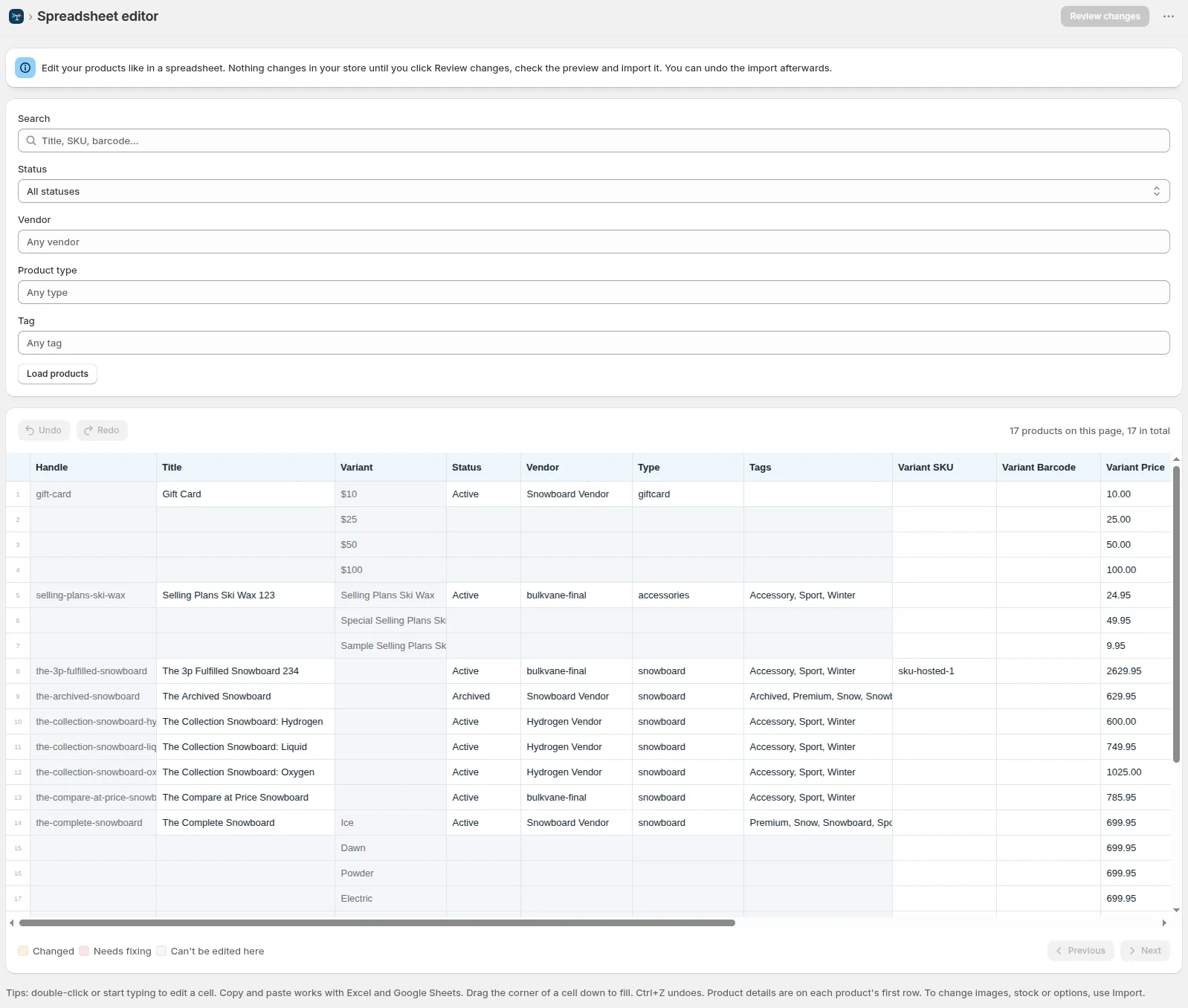
How to bulk edit Shopify productsFree CSV templatesBrowse the help center
Preview every change.Undo any import for 30 days.
Install free