How to bulk edit SEO titles and meta descriptions in Shopify
Write or fix SEO titles and meta descriptions for hundreds of Shopify products at once, with spreadsheet formulas, length checks, a preview and undo.
What Shopify's SEO fields are
Every product has two fields for search engines, under “Search engine listing” on the product page in Shopify admin: the page title and the meta description. In a product file they're the SEO Title and SEO Description columns.
- SEO Title is the blue link in search results. If it's empty, Shopify uses the product's title.
- SEO Description is the text under the link. If it's empty, Shopify uses the start of the product description.
- Shopify's own export leaves both columns blank unless you've customised them, so a blank cell usually means “using the default”, not “broken”.
That default is why most stores have the same problem: hundreds of products whose search listing is just the product name, or the first sentence of a description written for the product page, not for Google.
How long they should be
- Titles: search results usually show about 50–60 characters before cutting a title off, so put the words people search for first. Bulkvane warns when an SEO title is over 70 characters.
- Descriptions: aim for about 140–160 characters: one or two sentences that say what the product is and why to click. Bulkvane warns over 320, the most search engines generally show.
- Make each one unique. Two products with the same title and description compete with each other in search results.
1. Export the SEO columns
- In Bulkvane, open Export and choose Products.
- Filter to the products you want to work on (by vendor, product type, tag or status) so the file stays manageable.
- In the columns, keep ID and Handle and add Title, Vendor, Type, SEO Title and SEO Description. Add Body HTML only if you want to work from the description.
- Choose Excel and start the export. Download the file from the job page when it's ready.
2. Write them with formulas
Formulas turn a thousand-row job into a few minutes. In these examples, B is Title, C is Vendor and D is Type; put the formula in a spare column, fill it down, then copy it and paste it over the SEO column as values.
| Goal | Formula (Excel and Google Sheets) |
|---|---|
| Title plus brand | =B2&" | "&C2 |
| Title, type and store name, cut to 60 characters | =LEFT(B2&" – "&D2&" | Your Store", 60) |
| Keep an existing SEO title, fill the gaps | =IF(E2="", B2&" | "&C2, E2) |
| A description from the type and vendor | ="Shop the "&B2&", a "&LOWER(D2)&" by "&C2&". Free returns on every order." |
| Flag descriptions that are too long | =IF(LEN(F2)>160, "too long", "") |
Formulas are a starting point. For your best-selling products, write the title and description by hand: say what the product is, who it's for and what makes it different, in words a customer would type.
3. Import, check and apply
- Delete the helper columns, or leave them. Columns Bulkvane doesn't use are listed and ignored.
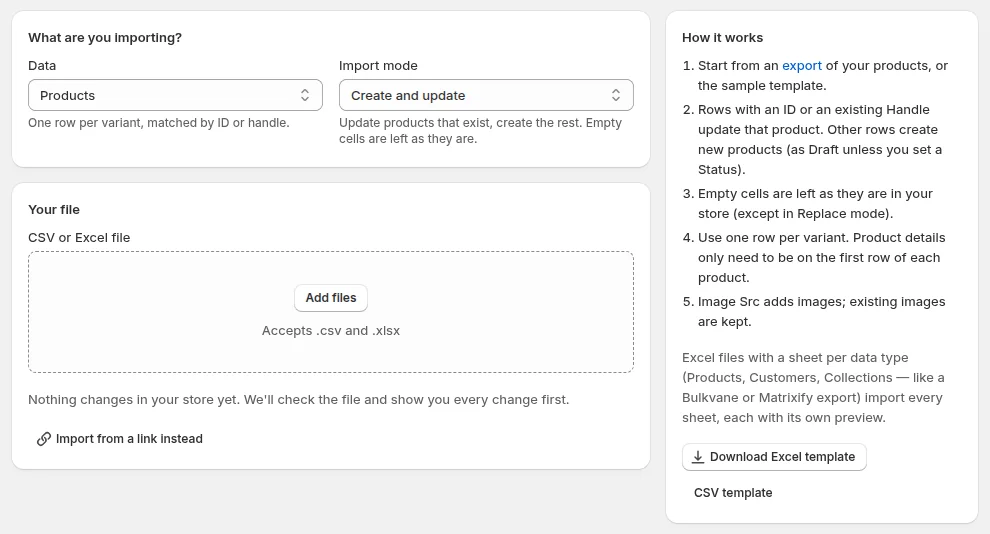
- Open Import, add the file and choose Update only, so no products are created by mistake.
- Click Check file. The preview shows every SEO title and description that will change, old beside new, with a warning on each one that's too long.
- Apply. If the new titles don't work out, open the job and click Undo this import. Every SEO field goes back. Undo works for 30 days.
Or edit them in a grid
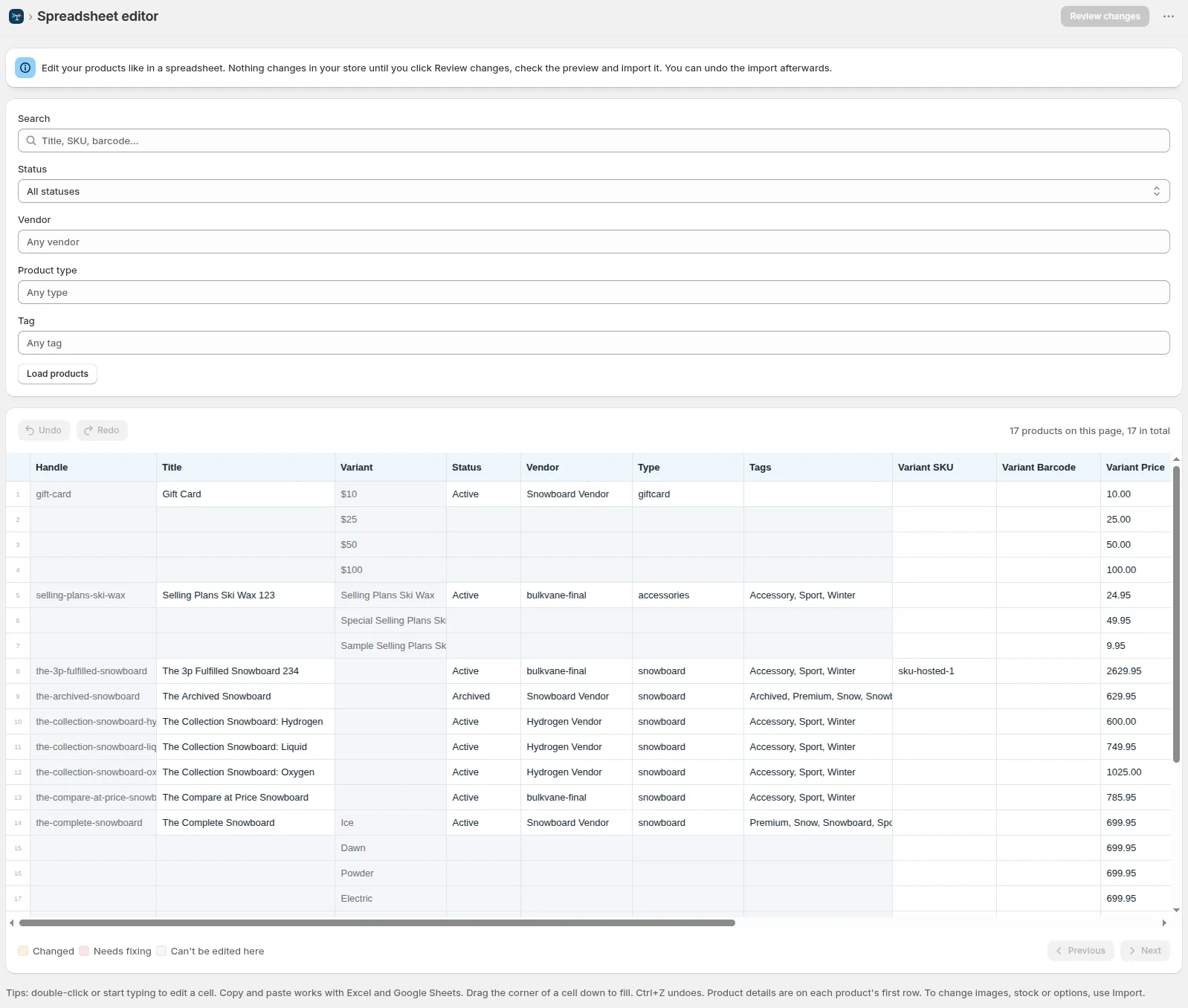
For a few dozen products, Bulkvane's spreadsheet editor is quicker: SEO Title and SEO Description are columns in the grid, next to the title and description. Filter by vendor, type or tag, type or paste the new text, then click Review changes to see the before-and-after preview.
Collections too
Collection pages often rank better than single products. A collection file has the same SEO Title and SEO Description columns, so the same method works: export collections, write the text, import with Update only. See importing collections.
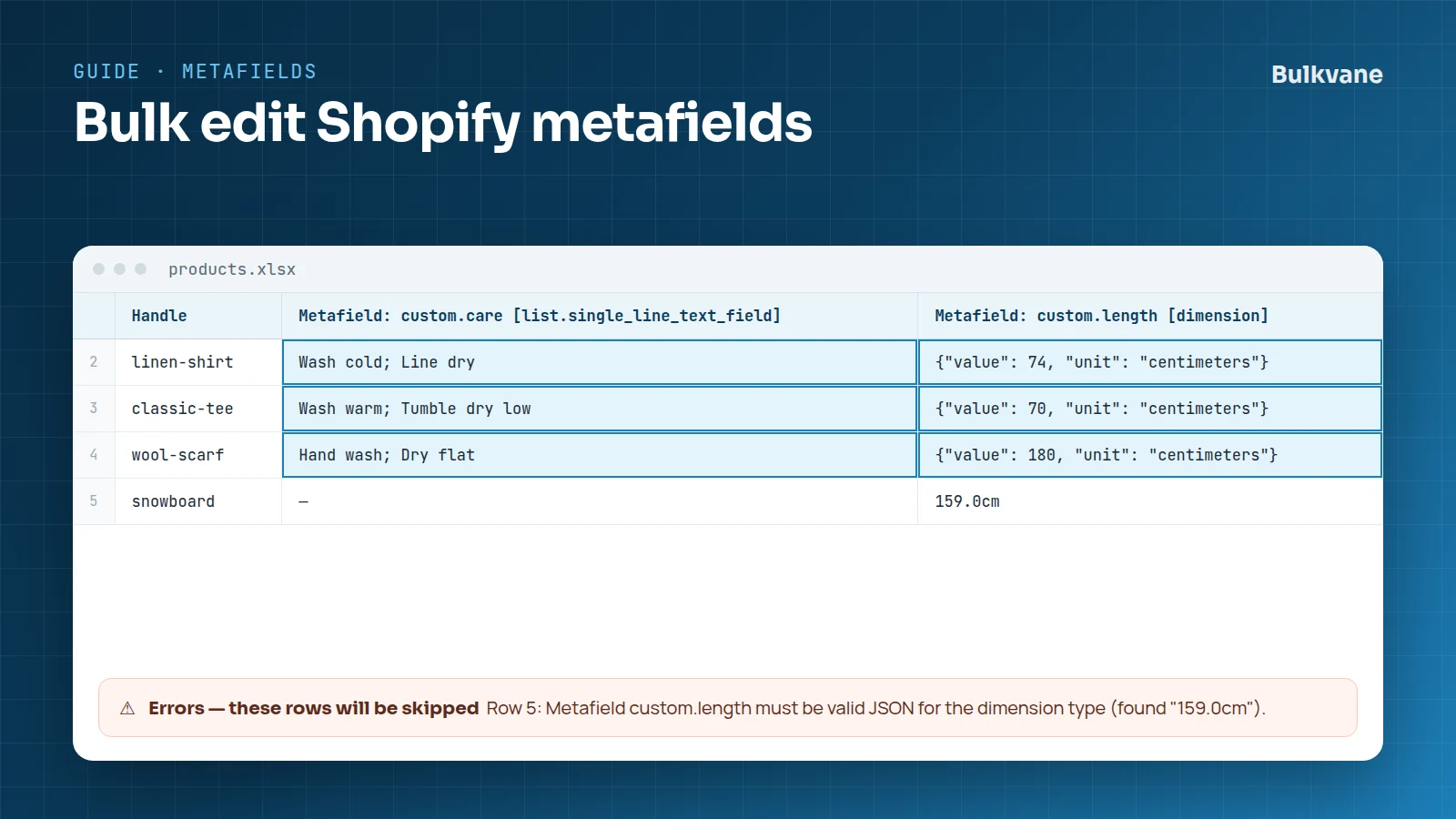
This guide is part of how to bulk edit Shopify products. Next, see bulk editing metafields for structured product data such as material or care instructions.
Frequently asked questions
Can I bulk edit SEO titles in Shopify without an app?
Yes. Shopify's product CSV has SEO Title and SEO Description columns: export, edit and import with “Overwrite products with matching handles”. Include only the columns you're changing, because blank cells in included columns overwrite values, and there's no undo.
What happens if the SEO title is empty?
Shopify uses the product's title as the page title, and the start of the product description as the meta description.
How long should a Shopify SEO title be?
Search results usually show about 50–60 characters. Put the most important words first. Bulkvane warns when an SEO title is longer than 70 characters.
Will changing SEO titles change my product URLs?
No. The URL comes from the product's handle, which is a separate column. SEO Title and SEO Description only change what search engines show.
Related guides
How to bulk edit products in Shopify (2026 guide, 3 methods)
Bulk edit Shopify product data three ways (the admin bulk editor, a CSV import or an app), with steps for prices, tags, SEO, metafields, variants and stock.
· 14 min read
How to bulk edit Shopify metafields with a spreadsheet
Bulk edit Shopify product and variant metafields with a spreadsheet: column names, the value format for every type, definitions, metaobjects and fixes.
· 6 min read
Shopify product spreadsheet: every column explained
What each column in a Shopify product export means, which ones you can change on import, and which are read-only, with examples for products and variants.
· 2 min read
How to bulk edit Shopify productsFree CSV templatesBrowse the help center
Preview every change.Undo any import for 30 days.
Install free