Shopify product CSV template: free download and how to fill it in
Free Shopify product CSV template and sample file: every column Bulkvane imports, a worked example of one product with three variants, and how to fill it in.
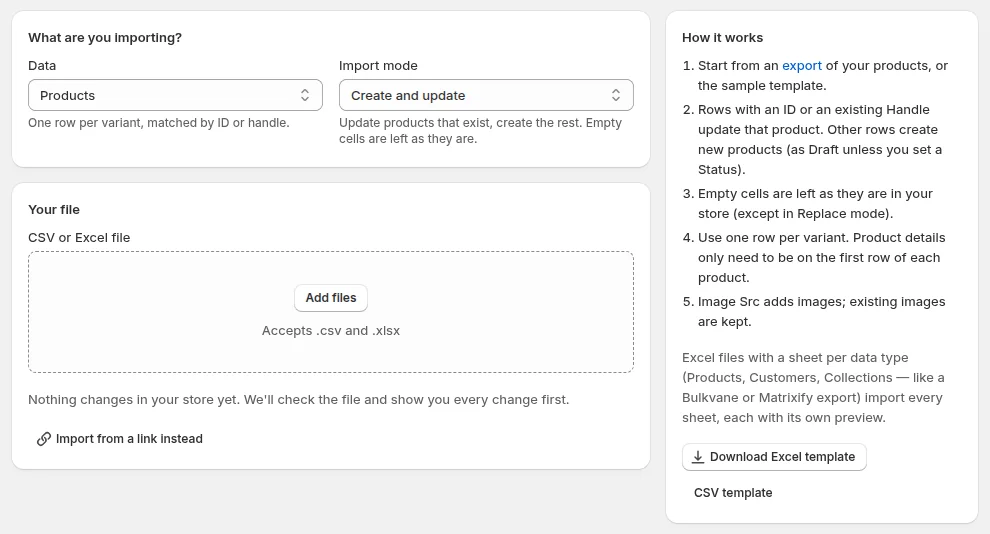
Download the template
The template has every standard product column you can import with Bulkvane, and one example product (a t-shirt in sizes S, M and L) so you can see how products and variants are laid out. It's the same template the app offers on its Import page.
Free, no sign-up. Opens in Excel, Numbers and Google Sheets. The Excel (.xlsx) version is on Bulkvane's Import page.
One row per variant
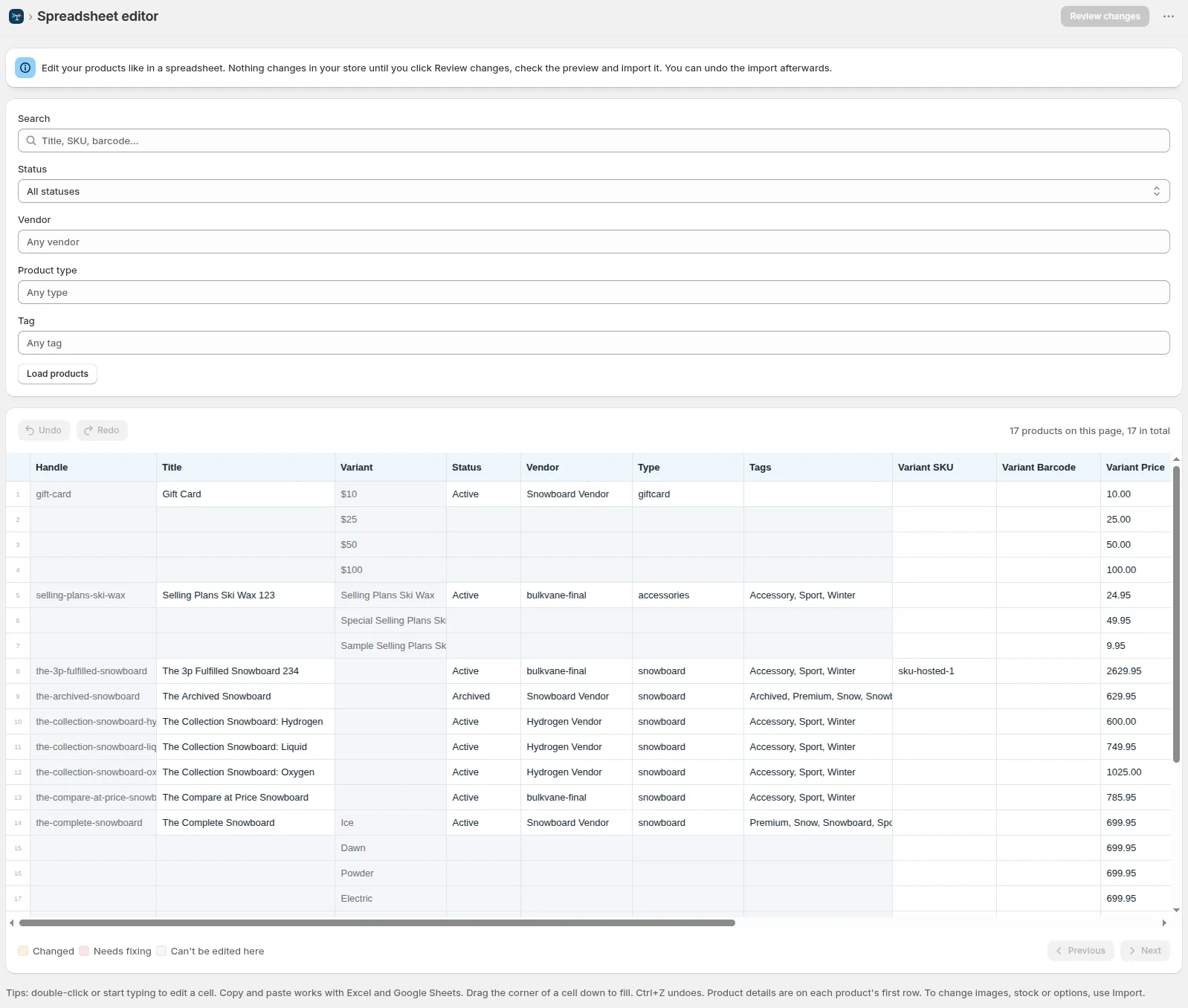
A product file has one row for every variant. The example product uses three rows:
- Row 1 has the product details: Title, Body HTML (the description), Vendor, Type, Tags, Status and SEO. It also has Option1 Name (Size) and the first variant: Option1 Value S, its SKU and price.
- Rows 2 and 3 repeat only the Handle, then give the next variants: M and L, each with its own SKU and price.
- The Handle ties the rows together. Put it on every row, including variant rows.
Every column in the template
ID, Handle, Title, Body HTML, Vendor, Type, Tags, Status, SEO Title, SEO Description, Image Src, Option1 Name, Option1 Value, Option2 Name, Option2 Value, Option3 Name, Option3 Value, Variant ID, Variant SKU, Variant Barcode, Variant Price, Variant Compare At Price.
Leave out any column you don't need. When you update products, columns you leave out and empty cells are left as they are in your store, except in Replace mode. See the column reference for what each column does and the other header names that work.
Adding metafields and stock
- Metafields: add a column named “Metafield: namespace.key [type]”, for example “Metafield: custom.material [single_line_text_field]”.
- Stock: add a column named “Inventory: ” followed by your location's name, for example “Inventory: Main warehouse”, with each variant's available quantity as a whole number.
See metafields and inventory and bulk updating inventory by location.
Spreadsheet traps to avoid
- Long IDs turn into numbers like 7.2E+12 in Excel. Format the ID and Variant ID columns as Text before you edit.
- Prices are written with a decimal point, such as 19.00. Bulkvane converts decimal commas and currency symbols for you and tells you it did.
- Images must be public links that start with https://. See importing products with images.
More in 7 costly Shopify import mistakes.
Import it
- In Bulkvane, open Import and add the file, or paste a Google Sheets link.
- Choose the import mode. Create and update makes new products and updates existing ones.
- Click Check file. Bulkvane shows every product it will create or change, field by field, and any problems in plain language.
- Apply the changes. If something looks wrong afterwards, undo the import in one click for 30 days.
Bulkvane also reads Shopify's own product CSV headers, so a file exported from Shopify imports as it is.
Frequently asked questions
Is the Shopify product CSV template free?
Yes, with no sign-up. It opens in Excel, Numbers and Google Sheets, and the Excel (.xlsx) version is on Bulkvane's Import page.
Should I start from the template or from an export?
Use the template for new products. To change products you already have, start from an export of your store, because it includes the IDs that match each row to the right product.
How do I add stock or metafields to the template?
Add an “Inventory: <location name>” column for each location's stock, and a “Metafield: namespace.key [type]” column for each metafield, such as “Metafield: custom.material [single_line_text_field]”.
What happens to columns I leave out?
When you update products, columns you leave out and empty cells keep the values already in your store. Only Replace mode clears them.
Related guides
How to bulk edit products in Shopify (2026 guide, 3 methods)
Bulk edit Shopify product data three ways (the admin bulk editor, a CSV import or an app), with steps for prices, tags, SEO, metafields, variants and stock.
· 14 min read
Import supplier CSV files into Shopify over FTP or SFTP
A practical guide to importing supplier CSV files via FTP, FTPS or SFTP into Shopify: SKUs, inventory locations, preview and safe updates.
· 2 min read
How to schedule Shopify product exports daily or weekly
Set up recurring Shopify CSV or Excel exports with saved templates, daily or weekly schedules, job history and completion notifications.
· 2 min read
How to bulk edit Shopify productsFree CSV templatesBrowse the help center
Preview every change.Undo any import for 30 days.
Install free