Importing
Edit products in the spreadsheet editor
Last updated
Open the editor and load products
Choose Spreadsheet editor in the Bulkvane menu. Narrow down what to load, then click Load products:
- Search: title, SKU or barcode.
- Status: all statuses, or only active, draft or archived products.
- Vendor, Product type and Tag.
Products load 50 per page. The counter shows how many are on this page and how many match in total; use Previous and Next to move between pages.
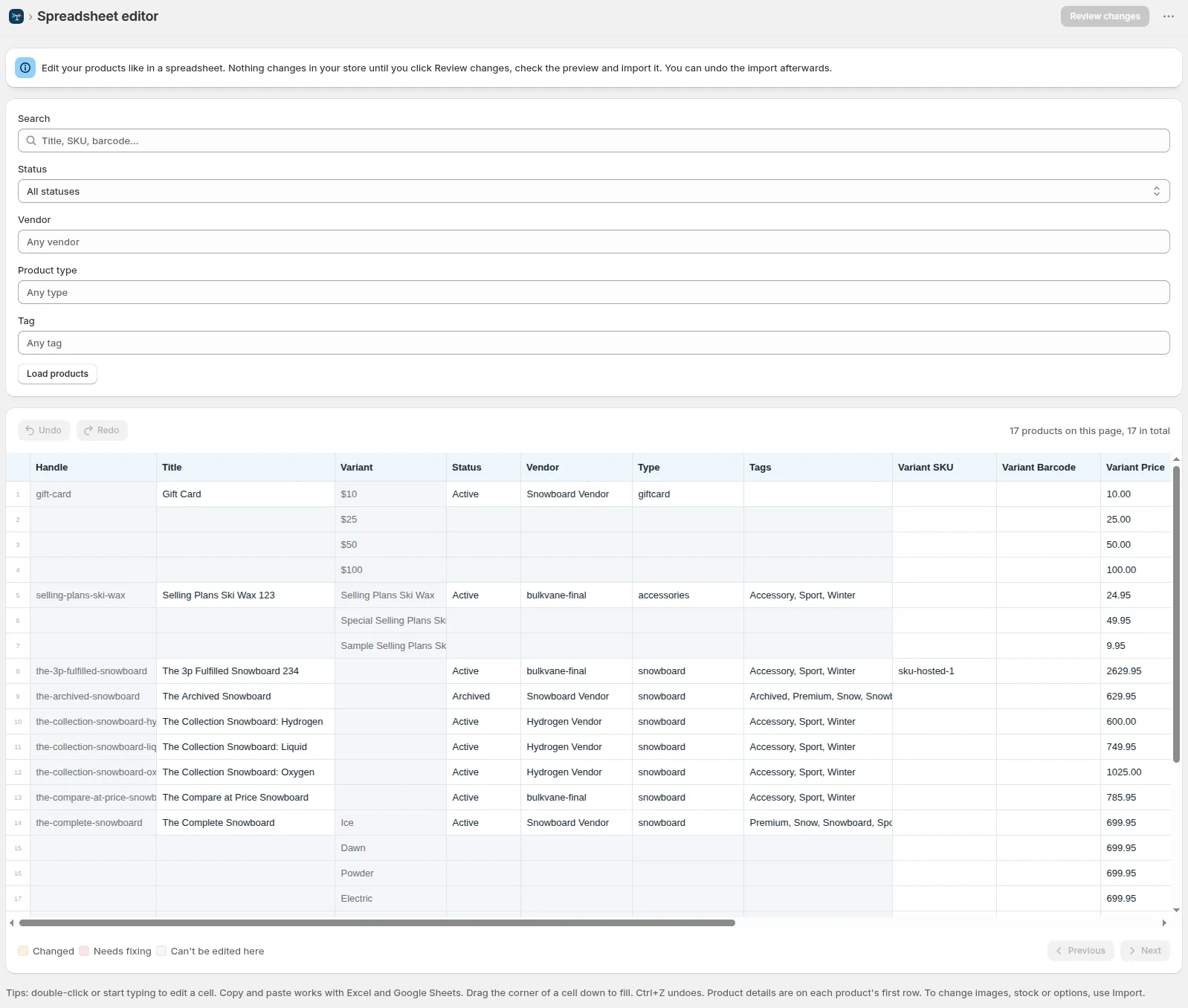
How the grid is laid out
- One row per variant, like a Bulkvane export.
- Product details (title, status, vendor, type and tags) are on each product's first row. The rows under it are that product's other variants.
- Variant columns (SKU, barcode and price) are on every row.
- Handle and Variant show which product and variant a row belongs to; they can't be edited here.
Edit
- Editable columns: title, status, vendor, type, tags, SKU, barcode, price, compare-at price, SEO title and description, and Body HTML.
- Double-click a cell, or select it and start typing.
- Copy cells from Excel or Google Sheets and paste them into the grid.
- Drag the corner of a cell down to fill the cells below with the same value.
- Ctrl+Z undoes, and the Undo and Redo buttons above the grid work the same way.
Cells are coloured as you work:
- Changed: you edited the cell, and it will be part of the save.
- Needs fixing: the value isn't valid, such as text in a price. Fix it before you save.
- Can't be edited here: the cell is shown for reference only.
Save with Review changes
Nothing changes in your store while you edit. Click Review changes and Bulkvane turns only the edited products and columns into an import (Update only, or Replace where you emptied a cell), so it goes through the usual checks, before/after preview, Apply and 30-day Undo.
Plans
The spreadsheet editor is on every plan. One save can change as many products as your plan's products per job: 10 on Free, 5,000 on Starter, 50,000 on Growth and 100,000 on Pro. Save larger changes in several batches. See plans and billing.
Related guides
- Preview changes and fix errors before importingWhat the preview shows, what the three kinds of messages mean, and what happens to rows with errors.
- Undo an import in one clickHow snapshots work, what Undo restores, and how long you have.
- Plans and billingHow plans work, how you're charged, and how to change or cancel.
- Import modes: create, update, replace or deleteWhat each of the five import modes does, and when to use it.